 aisma

Real Aisma edit
A white candle, now an amber jar.
A real Aisma edit of an 8-second clip, made from one product photo and the brief printed below.
Example requestswap the candle for the amber jar in the photo
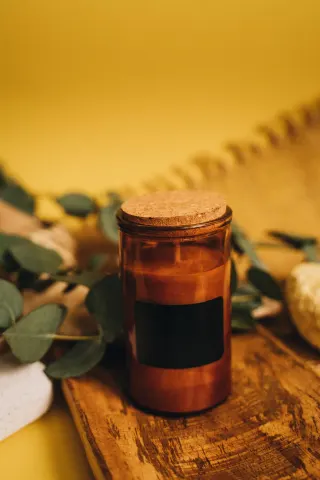
To swap a product in a video without reshooting, upload the clip to an AI video editor like Aisma, add a photo of the new product and write one sentence, such as “swap the candle for the amber jar in the photo.” Aisma swaps it in every frame and keeps the hands, framing and sound as filmed. A reshoot or planar tracking in After Effects also works, with more time and hands-on work.
Paid editing · MP4 or MOV · 2–60 seconds · Review credits before generating.
Updated November 4, 2026
A white candle, now an amber jar.
A real Aisma edit of an 8-second clip, made from one product photo and the brief printed below.
Example requestswap the candle for the amber jar in the photo
What stays
What changes
What you bring
A clip you shot + one product photo + one sentence
FOUR WAYS
Every method has two jobs: make the new product follow the old one through every frame, and keep the hands on top of it. A reshoot does both on set; the other three work on footage you already have, which matters before the holidays, when one product video has to carry a holiday edition, a gift set or new packaging.
| Reshoot | Planar tracking | 3D product replacement | Aisma | |
|---|---|---|---|---|
| What you do | Film the take again with the new product | Track a flat face of the product, then pin new artwork to it | Model the new product, match it to the shot and render it in | Add a product photo and write one sentence |
| What can change | Anything: it’s a new take | Flat artwork, like a label, a sleeve or the face of a box | Anything, the shape included | The whole product, shape included, from your photo |
| The hands | Real, as filmed | Each finger that crosses the label needs a matte | Rotoscoped back over the render | Kept from your take, holding the new product |
| What you need | The product, the set, the talent and a shoot day | After Effects, which includes Mocha AE, or DaVinci Resolve | A 3D artist, a model of the product and render time | A browser or the Aisma app |
| Watch for | A new take never matches the old one exactly | Labels that wrap around a round bottle | The most hours of any way here | Clips of 2–60 seconds; small print can come out different from your photo |
The manual steps follow Adobe’s and Blackmagic Design’s own pages as of November 4, 2026; menus can differ in your version.
Comparing AI tools rather than methods? See what each one accepts and returns.
METHOD 1 · AISMA
MP4 or MOV, 2–60 seconds, up to 500 MB, vertical, square or horizontal. The edit keeps your framing, length and sound.
Upload a clear photo of the new product and say what it replaces, like “swap the candle for the amber jar in Photo 1.” Then say what stays.
Choose 720p or 1080p and press Generate. The finished video goes to your private Library.
This is the prompt we sent for the clip at the top, word for word, beside the product photo it calls Photo 1. Its first sentence names the new product by what the photo shows, amber glass, a cork lid and a plain black label; its second lists what stays, from her grip to the light.
We ran it once at 720p and kept that result. The jar in the photo is taller than her white candle, so the new one rises higher above her fingers, while her hands hold it the way they held the old one.
Try it on your videoThe brief we sent, word for word
Replace the candle in her hands with the amber glass candle with a cork lid and a plain black label shown in Photo 1. Keep her hands, her grip, the apron, the room and the lighting.
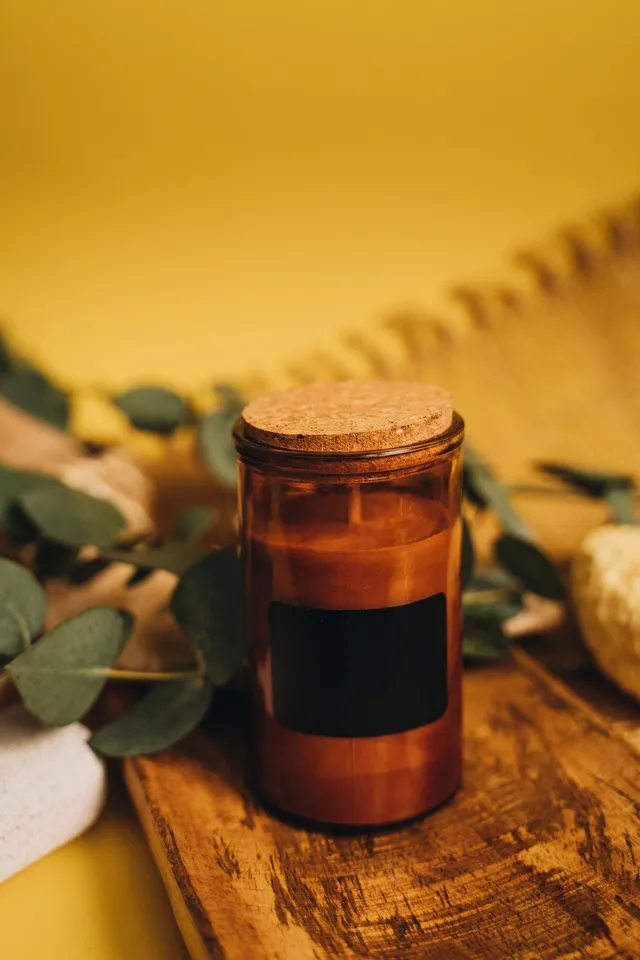
8 seconds · 720p · one product photo · sent once
METHOD 2 · RESHOOT
The surest way is the real thing: the new product in real hands, under real light. It needs everything the first shoot did, from the talent and the set to the product itself, and holiday packaging isn’t always printed by the time the ads are due.
A new take never matches the old one exactly, so captions, cuts and music timed to the first one need redoing. When the first take is already approved, editing it keeps what you liked about it.
METHOD 3 · PLANAR TRACKING
When only the artwork changes, like a holiday sleeve on the same box or a seasonal label on the same jar, a planar track does it. After Effects includes Boris FX’s Mocha AE plug-in: select the clip’s layer, choose Effect > Boris FX Mocha > Mocha AE, click the Mocha logo in Effect Controls and track the flat face you’re replacing.
Back in After Effects, choose Create Track Data under Tracking Data, set Export Option to Corner Pin and apply it to the layer with your new artwork. Fingers that cross the label need a matte of their own to stay on top, which Roto Brush can make. A label that wraps around a round bottle curves away from the camera in a way a flat corner pin won’t follow.
In DaVinci Resolve, the planar tracker on the Fusion page does the same job with corner pinning built in: draw a shape around the label, track forward and connect the new artwork. Adobe notes that Premiere can run Mocha through Boris FX’s Mocha Pro plug-in.
METHOD 4 · 3D REPLACEMENT
No flat track turns a short jar into a tall one. For a new shape, a 3D artist models the product, matches it to the shot’s movement and light, renders it and composites it in, then rotoscopes the hands back over it. It’s studio work, and the slowest way here.
For a product that sits still while the camera moves, After Effects can solve the camera: select the layer and choose Animation > Track Camera. Adobe notes that moving objects can confuse that tracker; a product turning in someone’s hand usually has its motion matched another way, often frame by frame.
WRITING THE REQUEST
Describe what you see, not how to track it. Name the product you’re replacing, point to the new one by its photo number with a few words about it, like “the amber glass candle with a cork lid in Photo 1,” then list what stays: the hands, the grip, the set and the light. The candle edit has its own page, with its photo.
Pick a photo where the whole product is sharp and nothing covers it, ideally from an angle close to your clip’s; an edit takes up to 10 photos. For a gift set or two products, give each its own photo and say which one replaces what. Aisma takes the shape from the photo, so if the size has to match the original, say so.
No photo? Words work for a simple change, like “make the bottle matte white with a silver cap.” A specific product needs its photo.
HOLIDAY VERSIONS
Before Black Friday, a product video you shot months ago can carry the holiday line: the regular product, the holiday edition and the gift set, each its own edit of the same take with its own photo. Every version keeps the take’s length and timing, so captions and music you add later line up across all of them.
Recreate in your Library reopens the clip for the next version without a new upload. For a version that changes more than the product, like a red backdrop or a wreath on the shelf, swap the product first, then pick the finished clip in your Library as the starting point for the next edit.
BEFORE YOU POST
The new product was never filmed, so Aisma generates it in every frame. Watch the result full screen before it goes into an ad, and read every label: small lettering and fine logo details can come out different from your photo.
Then check the fingers where they touch the product, the reflections, and any part the two products don’t share. In one of our test runs, a mug swapped from a photo came back with two handles, the original’s in the hand and the photo’s on the far side, so we set it aside.
Your voiceover stays as recorded, so if it names the old product, re-record that line in your usual editor. To fix one part, open Clips under the finished video, pick the clip and say what to change, like “make the lid cork, as in Photo 1.”
REQUESTS TO BORROW
Written like the candle brief; none were rendered for this page. Show products you own or have the rights to use.
Holiday edition
Swap the bottle in my hand for the holiday edition in Photo 1, with the gold snowflake label. Keep my grip and the counter.
Gift set
Replace the candle on the table with the gift box in Photo 1. Keep her hands, the table and the lights behind her.
Seasonal flavor
Swap the coffee bag on the shelf for the peppermint bag in Photo 1. Keep the other bags and the shelf.
Two products
Replace the mug with the one in Photo 1 and the gift box with the one in Photo 2. Keep my hands and the tree behind me.
New color, no photo
Make the tumbler in her hand cranberry red with a silver lid. Keep her hand and the snow behind her.
A tall bottle works the same way: our perfume example swaps a clear bottle for a matte-black one in the same hand, brief included.
WHAT IT COSTS
A FEW GOOD QUESTIONS
Yes. Aisma swaps the product in a clip you already shot, from a photo of the new one and a written request, and keeps the hands, framing and sound as filmed. When only the label changes, planar tracking in After Effects or DaVinci Resolve works too.
For a specific product, yes: one clear photo, called Photo 1 in your request, is what makes it match. A simple change can be made in words alone, like “make the bottle matte white.” An edit takes up to 10 photos.
Not always. Shapes, colors and finishes came through clearly in our examples, but small lettering and fine logo details can come out different from your photo. Read every label at full size before the clip runs as an ad.
Yes, one edit per version, each with its own product photo. They all keep the take’s length and timing, and Recreate in your Library reopens the clip for the next one without a new upload.
Clips where the product stays easy to see: a steady hand, even light and the product in view most of the time, like our candle and the bottles on our product swap page. If a hand hides most of the product or it blurs past, pick a cleaner take.
Clips of 2 to 60 seconds, as MP4 or MOV up to 500 MB. You get an MP4 at 720p or 1080p with the same length, framing and sound; split a longer video into parts of up to 60 seconds.
Yes. Your clip, photos and result are private to your account. Without a weekly plan, a finished video stays in your Library for 72 hours, so save your copy.
Yes. The candle clip at the top is a real Aisma edit of a stock clip from Pexels, made from the brief and the product photo printed on this page. Before → After views show the original and the edit at the same moment of the clip, never cropped, sped up or retouched. Your result depends on your clip and request.
YOUR NEXT EDIT STARTS HERE
Paid editing · MP4 or MOV · 2–60 seconds · Review credits before generating.