To face swap a video, upload the clip to an AI video editor like Aisma, add a clear photo of the new face and write one sentence, such as “replace the man with the guy from the photos.” Aisma puts the new face in every frame and keeps the gestures, the setting and your sound as filmed. Face tracking in After Effects or DaVinci Resolve also works, with far more hands-on time.
Paid editing · MP4 or MOV · 2–60 seconds · Review credits before generating.
Updated November 20, 2026
One clear photo of the face is enough to start.
Gestures, framing, length and sound stay as filmed.
No tracking, masks or keyframes.
Before → AfterOriginal
Real Aisma edit
One kitchen talk, three new faces.
Real Aisma edits of one 10-second take, each made from two portraits of a fictional person and one request. Full Aisma edit plays each swap whole.
Example requestreplace the man with the guy from the photos
Example request“replace the man with the guy from the photos”
Example request“replace the man with the woman from the photos”
Example request“replace the man with the guy from the photos”
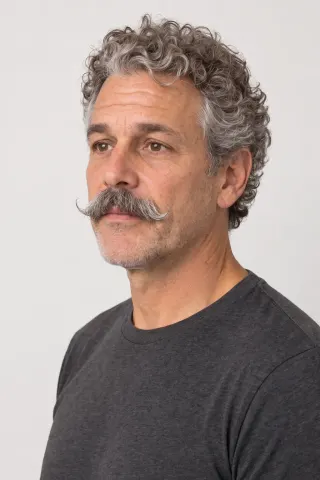
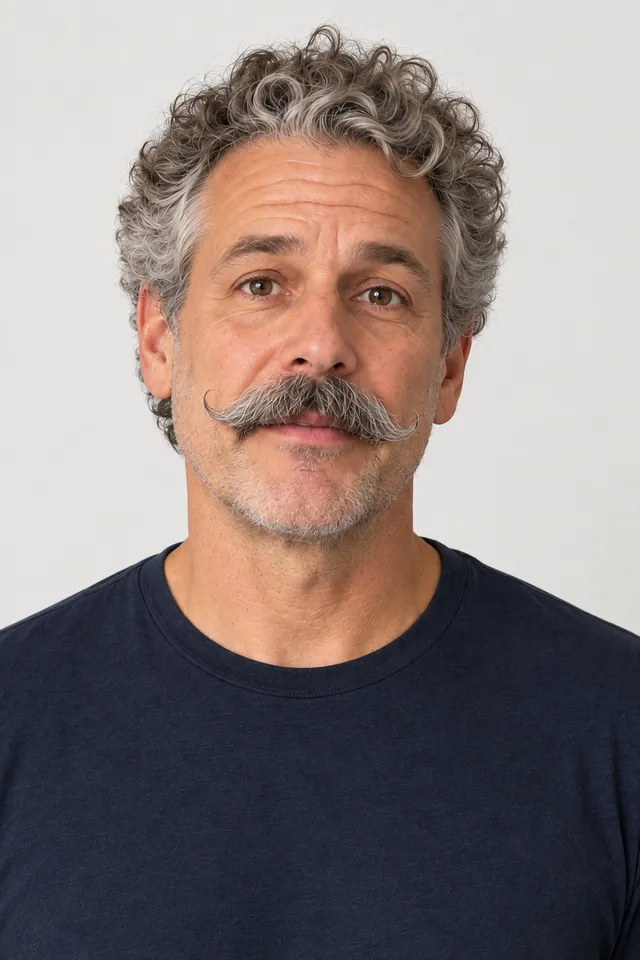
Photo 1Photo 2
What stays
Gestures, head turns and timing, as performed
The setting, the light and the camera move
Your framing, length and original audio
What changes
The face and hair, from your photo
Skin tone and facial hair, to match the new person
What you bring
A clip you shot + one clear photo of the face + one sentence
FOUR WAYS
Four ways to put a new face on a video.
Every face swap does two jobs: it follows the original face through every frame, and it makes the new face look lit and filmed like the rest of the shot. What differs is who does the work. By hand you track and composite; on a phone the app decides; with Aisma you describe the swap and get the finished clip back.
Choose by your footage and your time. A reshoot makes sense when the new person can be on set; the other three start from the take you already have.
Four ways to face swap a video, compared
Reshoot
Track the face by hand
Face swap apps
Aisma
What you do
Film the take again with the new person
Track the face in After Effects or DaVinci Resolve, then composite the new face over it
Pick a clip or one of the app’s templates, then add a selfie
Add a photo of the new face and write one sentence
The performance
A new take, never quite the same
Yours, as filmed
Depends on the app
Yours: gestures and timing come from your take
Head turns and talking
Real, as filmed
Each turn and word needs the track checked and fixed
Depends on the app
The new face follows your take, frame by frame
What you need
The new person, the place and a shoot day
After Effects or DaVinci Resolve, and hours of frame-by-frame work
A phone and the app
A browser or the Aisma app
We checked the manual steps against Adobe’s and Blackmagic Design’s own pages on November 20, 2026. Menus move between versions, so follow the one you have installed.
Comparing AI tools rather than methods? See our AI video editor comparison: the same clip and the same request in Aisma and seven popular AI video editors.
METHOD 1 · AISMA
Face swap a video with Aisma in three steps.
Upload
your clip
MP4 or MOV, 2–60 seconds, up to 500 MB. A clip where the face stays in view and in focus gives the new face the most to work with.
Add the photo,
then one sentence
Add a sharp, evenly lit photo of the new face and say whose face it replaces, like “replace the man with the person in Photo 1.” A second photo at three-quarters helps.
Pick a quality,
then generate
Choose 720p or 1080p and press Generate. The finished video goes to your private Library.
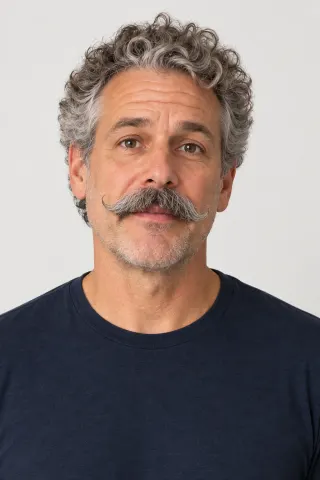
This is the brief behind the veteran at the top, word for word, beside the front portrait it calls Photo 1. Its first sentence points to the man and to the photos; the rest says what stays.
“His bright royal-blue crew-neck T-shirt” names the shade and the neckline, so the shirt stayed blue while the face, the gray curls and the mustache came from the portraits. The rookie’s brief is the same, word for word, with his own two portraits.
Each swap at the top used two portraits, one from the front and one at three-quarters. One clear photo is enough to start, as our walkthrough shows; a second gives Aisma more of the face to match.
Replace the man with the same person shown in Photos 1 and 2. Keep his bright royal-blue crew-neck T-shirt exactly the same colour as in the video. Preserve his hand gestures, head movement, the kitchen, lighting and camera. Keep the new person's appearance consistent throughout.
Photo 1 · The front portrait
10 seconds · 720p · two portraits
WATCH THE WALKTHROUGH
Three faces from three photos, start to finish.
Rather watch it first? Our four-minute walkthrough on YouTube face swaps three clips with Aisma, each from a single portrait: a man talking in his kitchen, a cook seen mostly in profile at the stove and a man on a terrace at sunset.
The manual way is visual effects work. You need the new face as a still or as footage lit like your shot, a track of the original face and time to check every frame. The track decides the result: the new face has to sit on the head through every nod, turn and word.
In After Effects, draw a closed mask loosely around the face on a frame where it looks straight at the camera, open Window > Tracker and set the method to Face Tracking (Outline Only), or to Face Tracking (Detailed Features) to follow the eyes, nose and mouth. Adobe advises starting on a front, upright view of the face and notes that good light on it helps.
After Effects also includes Boris FX’s Mocha AE plug-in (Effect > Boris FX Mocha > Mocha AE) for a planar track. Pin the new face to the track, give it a soft edge, then match color, grain and light by hand; a head that turns away from the camera needs fixing frame by frame.
In DaVinci Resolve, the Fusion page has the same kit: a 2D tracker and a planar tracker, masks drawn as bezier or B-spline shapes that you can track, and the merge node that layers the new face over the shot.
The steps, in either app:
Get the new face, lit like your shot
Track the original face through the clip
Pin the new face to the track and mask it with a soft edge
Match color, light and grain
Play it back full size and fix every frame that slips
METHOD 3 · RESHOOT
Film it again with the new face.
If the new person can be on set, filming the take again gives you a real face under real light. It also gives you a new performance, with different timing and gestures, so cuts, captions and music timed to the first take need redoing.
When the take you have is the one you want, with the right moment, the right light and the right sound, editing it keeps all of that.
METHOD 4 · FACE SWAP APPS
A face swap app on your phone.
Phone apps that swap faces are quick and made for fun: many put your selfie into short clips or templates the app provides, and some take a video of your own. They suit a joke for the group chat; what they do with your clip and your photos depends on the app, so read its terms before you upload anyone’s face.
Aisma works on your own clips, in the iPhone and Android apps as well as in the browser, and keeps your clip, your photos and the result private to your account.
WRITING THE REQUEST
Say whose face, then what stays.
Point to the person by what you see, then to the photo: “replace the man in the blue T-shirt with the person in Photo 1.” Then name what must stay, exactly. The veteran’s brief named “his bright royal-blue crew-neck T-shirt,” and the shirt stayed that blue.
For the photo, pick one person facing the camera or at three-quarters, sharp and evenly lit, with no sunglasses or filters. Our face swap page has more tips for the portraits.
Two people to swap? Give each their own photo and say who gets which, like “the man on the left gets Photo 1, the woman on the right gets Photo 2.” On the web, Aisma may check with you in a quick question before it renders.
AFTER THE EDIT
Watch the turns, then the hands.
In the kitchen talk, each new face follows the man’s nods and glances, his hand gestures land on the same words, and the kitchen and the light stay as filmed. Your original sound plays under it.
To change one moment, open Clips under the finished video, pick the clip and say what to change, like “keep the kitchen window as filmed.” Aisma shows that clip’s price before it runs.
REQUESTS TO BORROW
Face swap requests for clips you already have.
Written like the veteran’s brief; none were rendered for this page. Use photos of people who agreed to appear in your video.
Birthday video
Replace my face with my sister’s in Photo 1. Keep my yellow dress and the cake.
Brand video, one take per host
Replace the presenter’s face with the person in Photo 1. Keep his navy blazer and the slides behind him.
Short film stand-in
Put the actor in Photo 1 on the stand-in at the bus stop. Keep the green raincoat and the umbrella.
Wedding video gag
Give the groom the face of the best man in Photo 1. Keep the tux and the first dance.
Training video
Replace the instructor’s face with the new instructor in Photo 1. Keep the whiteboard and her gestures.
Two people, two photos
Give the man on the left the face in Photo 1 and the woman on the right the face in Photo 2. Keep their clothes.
Upload the clip to Aisma, add one sharp, evenly lit photo of the new face and write who it replaces, such as “replace the man with the person in Photo 1.” One clear photo is enough to start, as our walkthrough shows; a second photo at three-quarters gives Aisma more of the face to match.
Can I face swap a video without After Effects?
Yes. With Aisma you describe the swap and get the finished clip back, with no tracking, masks or keyframes. Face swap apps on your phone are another route for quick clips.
Does the hair change too?
Yes. The face, hair, skin tone and facial hair come from the photos, down to the veteran’s gray curls and mustache at the top of this page. Gestures and head turns stay as performed.
Will the person keep their clothes?
Name the clothes and they stay: the veteran and the rookie kept the royal-blue T-shirt because the brief named its exact shade and neckline. To bring the new person’s clothes along too, replace the whole person.
Can I swap more than one face in a clip?
Yes. Add photos for each person and say who goes where, like “the man on the left gets Photo 1 and the woman on the right gets Photo 2.” On the web, Aisma may ask which photo goes with whom before it renders.
What clips work best?
Clips where the face stays in view and in focus, like the kitchen take at the top: one 10-second shot of a man talking to the camera from about arm’s length.
How long can the video be?
Clips of 2 to 60 seconds, as MP4 or MOV files up to 500 MB, vertical, square or horizontal. The swap comes back at the same length and framing, in 720p or 1080p.
Whose face can I use?
Your own, or the face of someone who agreed to it, in footage you own or have permission to edit. Swaps with a celebrity’s or a stranger’s face, or ones meant to fool people, aren’t something Aisma offers.
Is my video private?
Yes. Your clip, your photos and the result are private to your account. Without a weekly plan, a finished video stays in your Library for 72 hours, so save your copy.
Are these real results?
Yes. The kitchen talk at the top is three real Aisma edits of the take shown with them; the veteran’s brief is printed on this page with his front portrait. Before → After views show the original and the edit at the same moment of the clip, never cropped, sped up or retouched.
KEEP EXPLORING
What else could change?
Frames from real Aisma edits. Some were recorded with a previous version of Aisma.
 aisma