An invideo alternative for changing what’s inside your own footage.

Aisma is an invideo alternative for changing what’s inside your own footage. Upload a clip you filmed, 2 to 60 seconds long, name the product, outfit, person or place that should be different, and add up to 10 reference photos if it has to look exact. Aisma hands back that clip at 720p or 1080p, framed and timed as you shot it, with your audio untouched.

Choose your video

Paid editing · MP4 or MOV · 2–60 seconds · Review credits before generating.

Updated November 28, 2026

  • A sentence changes what’s in the frame.
  • Your own take, up to 60 seconds.
  • invideo’s facts from its own pages, as of November 2026.
Before → AfterOriginal
Real Aisma edit

Same hands, an amber candle jar.

What Aisma returned from one product photo and a two-sentence request: the white candle in the cupped hands became the amber glass jar with a cork lid, held the same way in front of the same apron. Full Aisma edit plays the whole clip.

Example requestswap the candle for the amber jar in the photo

Amber glass candle jar with a cork lid and a plain black label
Photo 1

What stays

  • The hands, the grip and each move they make
  • The framing, every cut and the length you filmed
  • Your voice-over, music or room sound

What changes

  • The product, outfit, person or place your request names
  • The exact look of a product or garment, from your photo

What you bring

Your own clip + a sentence about the change + up to 10 photos

AS OF NOVEMBER 2026

invideo and three others,
beside Aisma.

We make Aisma, so read its line as the maker’s own. Every other line comes from that company’s public pages.

Each tool here can work on footage you upload. They start from different places, take direction in different ways and hand back different files, and that’s what the table lines up, with what each one can change inside a shot.

Where Aisma, invideo, Runway, VEED and Kapwing start, how you direct them, what they change inside a shot and what you take away, as of November 2026
ToolWhere you startHow you direct itChanges inside the shotWhat you take away
AismaOne clip you filmed, 2 to 60 seconds, MP4 or MOV up to 500 MBA written request, plus up to 10 photos when a look must matchPeople, outfits, products, objects, the place or the whole look, in every shotOne MP4, 720p or 1080p, as long as the clip you filmed and framed the same, with its audio
invideoFootage on a multitrack timeline in the browser, or a prompt or script that invideo AI turns into a videoPlain-words directions to its editing agent, text commands, or the timeline by handObjects and backgrounds removed or replaced, and missing shots generated as B-rollAn MP4, or a project file for Premiere Pro, DaVinci Resolve or Final Cut Pro
RunwayA prompt, an image or a clipA description or one edited frame in Edit Studio, or an app for each jobA product, clothing, the backdrop, the light or the style, in clips of up to 30 seconds1080p from Edit Studio, with 4K upscaling on its paid plans
VEEDAn upload, a pasted link, a recording made in the browser, or a prompt, a script or an imageChat with its AI agent, or edit the transcript or the timelineThe background removed and replaced; video-to-video models change the style, swap the subject or add and remove elementsAn H.264 MP4 of up to 4K, or the audio as MP3, or a GIF
KapwingAn upload, a pasted link, a recording in the editor, or a promptIts AI assistant in chat, one-click tools or a drag-and-drop timelineObjects and details changed by video inpainting, and backgrounds removed or replacedExports of up to 4K and up to 120 minutes on its Pro plan, as MP4, GIF, MP3 or images

As of November 2026: we read each company’s own pages on November 28, 2026. “Not stated” means we didn’t find it on those pages, not that the tool lacks it. All five update their tools often, so it’s worth opening each company’s page before you choose.

SOURCES

Where we read
each line.

Read on November 28, 2026. The links go to each company’s own pages and open in a new tab.

Aisma
Our own product; each limit is in the help center.
invideo
Home page, AI video editor page, AI video generator page and its help articles on the editor, on exporting and on uploads.
Runway
Pricing page, Edit Studio page and AI video generator page.
VEED
Video editor page, AI video generator page and its help articles on VEED AI and on downloading a project.
Kapwing
Video editor page, AI video editor page and pricing page.

BEST FOR

What each tool
is built for.

Aisma

Best for: A take you’re happy with, when one thing in the frame has to change: the product, the outfit, the person or the place.

Aisma edits inside a clip you filmed. One request in plain words, with up to 10 photos for an exact product or garment, changes what you name in every shot, and the take keeps its length, framing and sound. It comes back as one MP4 for whichever editor you finish in.

See the AI product swap and the help article on product demos.

invideo

Best for: Building a whole video from an idea or a script, or handing the rough cut of a long shoot to an editing agent.

invideo’s editor is a browser timeline like a desktop editor’s, where an agent takes plain-words directions, such as cutting a talk down or matching the color of two shots, and lays its changes down as clips you can adjust. invideo AI writes a script from a prompt and adds visuals, a voice-over, subtitles and music, and the editor exports an MP4 or a project for Premiere Pro, DaVinci Resolve or Final Cut Pro.

Sources: invideo’s AI video generator page, help article on the editor and help article on exporting.

Runway

Best for: Generating new shots from text, images or clips and editing them in the same workspace.

Runway makes and edits video, images and audio in one cloud workspace. Its apps handle single jobs on real footage, such as removing an object, relighting a scene or swapping a backdrop, and its Edit Studio applies a described change across the shots of a clip of up to 30 seconds.

Sources: Runway’s Edit Studio page and AI video generator page.

VEED

Best for: Packaging a video for social: subtitles, a clean cut, brand styling and a version for each platform.

In VEED you describe the result to its AI agent, which trims, subtitles, adds your brand and resizes the footage you give it, and can make video, images, voice and music to fill a gap. The same browser editor records your screen and webcam and swaps a video’s background with no green screen.

Sources: VEED’s help article on VEED AI and its video editor page.

Kapwing

Best for: Marketing and training teams that subtitle, translate and resize videos together.

Kapwing is a collaborative browser editor with a drag-and-drop timeline, an AI assistant and tools for subtitles, dubbing and lip sync in over 100 languages, resizing and clips. Its AI can make a video from a prompt, and video inpainting changes objects or details in footage you upload.

Sources: Kapwing’s video editor page and AI video editor page.

WHY AISMA

Why Aisma when the footage
is already yours.

invideo can assemble a video around an idea; Aisma works inside a clip you’ve already filmed. You keep the shot, the performance and the sound, and one request changes what’s in the frame:

  • A clip of 2 to 60 seconds, MP4 or MOV up to 500 MB, from a phone or a camera
  • One plain-words request of up to 2,000 characters, carried through every shot
  • Up to 10 photos, JPEG, PNG or WebP, for a product, a garment or a face that has to match
  • The framing, the timing and the audio of the take you filmed
  • One private MP4 at 720p by default or 1080p, ready to drop into the editor you use

The candle at the top took one product photo and two sentences. Our guide to swapping a product in a video sets that way beside the manual ones, from a reshoot to tracking by hand.

ONE TAKE, MORE VERSIONS

Film the take once,
then change what’s in it.

A product clip, a try-on or a short pitch to camera is often a take you’d use again if one thing in it were different. In Aisma, that one thing is a sentence, written as what changes and then what stays. For example:

  • A new product in the same hands: “Replace the candle she’s holding with the jar in Photo 1. Keep her grip, the apron and the light.”
  • A new colorway: “Change his sneakers to the white-and-green pair in Photo 1. Keep his walk, the street and the camera.”
  • A new outfit for the same pitch: “Change her gray sweater to a navy blazer over a white shirt. Keep her face, her gestures and the room.”
  • A new set behind the speaker: “Change the kitchen behind him to a bright studio with a white backdrop. Keep him, his gestures and the camera.”

Each version is its own edit of the same take, and you see its credits before it starts. Our help article on using an edited video in ads covers posting one and the labels some platforms ask for.

SWITCH IN THREE STEPS

Switch from invideo in three steps.

  1. Upload the clip you filmed

    MP4 or MOV, 2 to 60 seconds, up to 500 MB, straight from your phone or camera.

  2. Say what changes, then what stays

    Name the product, outfit, person or place, and attach up to 10 photos for an exact match.

  3. Pick a quality, then generate

    Choose 720p or 1080p. You see the credits first, and the finished clip waits in your private Library with your audio.

Try it on your video

Try this request
on your video.

This is the complete brief behind the candle at the top, as sent: two sentences and the product photo it calls Photo 1.

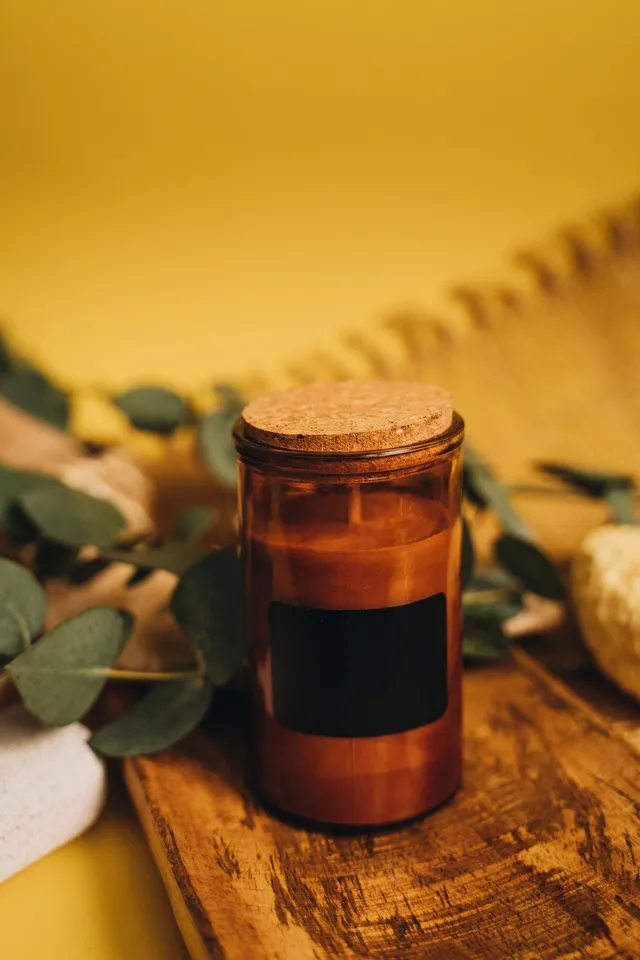
Sentence one describes the new jar the way the photo shows it, down to the cork lid and the plain black label, and refers to the photo by number. Sentence two lists what may not move: her hands and grip, the apron, the room and the light.

It ran once, at 720p. The amber jar in the photo is taller than the white candle, so it rises a little higher above her fingers, and her grip doesn’t change.

Try it on your video

The brief we sent, word for word

Replace the candle in her hands with the amber glass candle with a cork lid and a plain black label shown in Photo 1. Keep her hands, her grip, the apron, the room and the lighting.
Photo 1: an amber glass candle jar with a cork lid and a plain black label on a wooden board, with eucalyptus leaves against a yellow background
Photo 1 · The product photo

8 seconds · 720p · one product photo · sent once

A FEW GOOD QUESTIONS

invideo or Aisma,
answered.

What’s a good invideo alternative for changing what’s in my own video?

Aisma is one: upload a clip of 2 to 60 seconds, write what should change, such as a product, an outfit, a person or the place, and attach up to 10 photos when the new look has to be exact. It returns that same clip with the change made, as long as before, and the sound you recorded plays unchanged.

Can Aisma write a script and build a video from a prompt, like invideo AI?

Aisma starts from a clip you filmed and changes what you describe in it. Turning a script or a prompt into a brand-new video is on our roadmap; if that’s the job you have in mind, write to support@aisma.ai and tell us about it.

Can I put a clip Aisma edited into invideo’s editor?

Yes. The result is one MP4 at 720p by default or 1080p, the length of your clip and framed the same way, so it goes onto a timeline like footage from your camera. invideo’s help pages list MP4 among the video files it uploads.

What kind of clip suits a product swap?

One where the product stays in clear view for most of the take, in good light, with a steady or smoothly moving camera. Add one clean photo of the new product, call it Photo 1 and say what must stay, as the candle brief above does. Our help article on editing a product demo goes through the rest.

What length and file type does my clip need?

From 2 to 60 seconds, as an MP4 or MOV file of up to 500 MB, from 9:32 tall to 32:9 wide. A minute-long take goes in whole, and the request applies in every shot of it.

Does Aisma keep my voice-over and music?

Yes. Aisma changes the picture and keeps the audio track you uploaded, so a voice-over, music or room sound plays as it did, with nothing re-voiced or re-scored.

Is my footage private?

Yes. Your clip, your photos and the result are visible to you alone, and a finished task can be deleted from its menu at any time.

Does Aisma have an app?

Yes: Aisma has apps for iPhone and iPad (iOS 16.4 or later) and Android, and it works in the browser at aisma.ai. Sign in with the same account on each, and your edits are in the Library on all of them.

Are these real results?

Yes. The candle jar at the top is what Aisma returned for the clip beside it, from the brief and the product photo shown above. Before → After views show the original and the edit at the same moment of the clip, never cropped, sped up or retouched.

YOUR NEXT EDIT STARTS HERE

Filmed it already?
Change what’s in it.

Choose your video

Paid editing · MP4 or MOV · 2–60 seconds · Review credits before generating.