 aisma
A photobomber
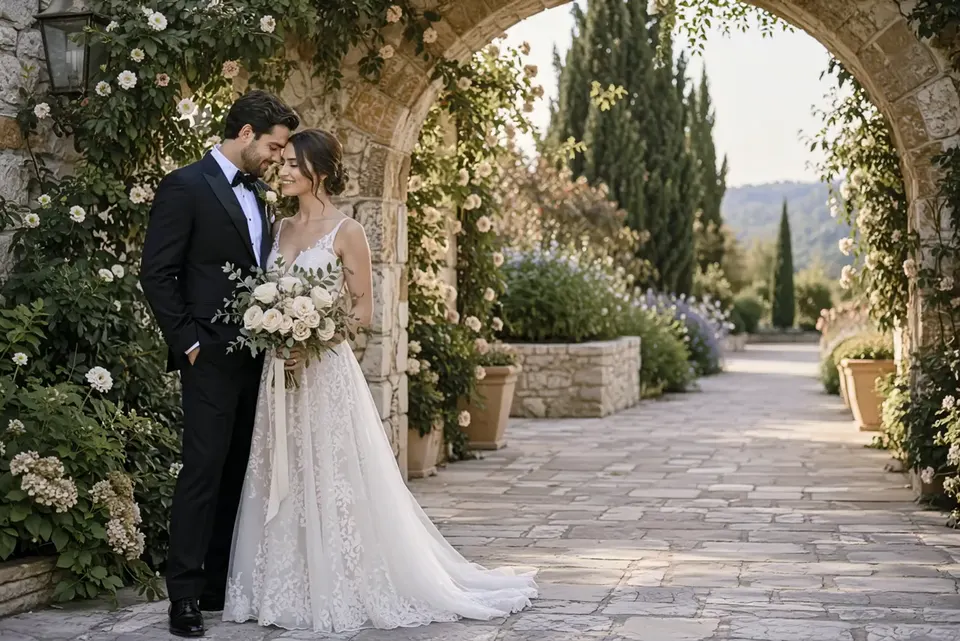
A stranger in a red jacket stood on the path behind a wedding couple, checking his phone: “remove the guy in the red jacket behind them.” Paving stones and lavender now fill his spot.
See the wedding editUpload a clip of 2 to 60 seconds and name what should go in one sentence, by what it looks like and where it is, such as the man in the red jacket behind the couple. Aisma removes it from every frame it appears in and fills the space from the scene around it, with your framing, length and original audio kept.
Updated November 21, 2026
Jump to the questions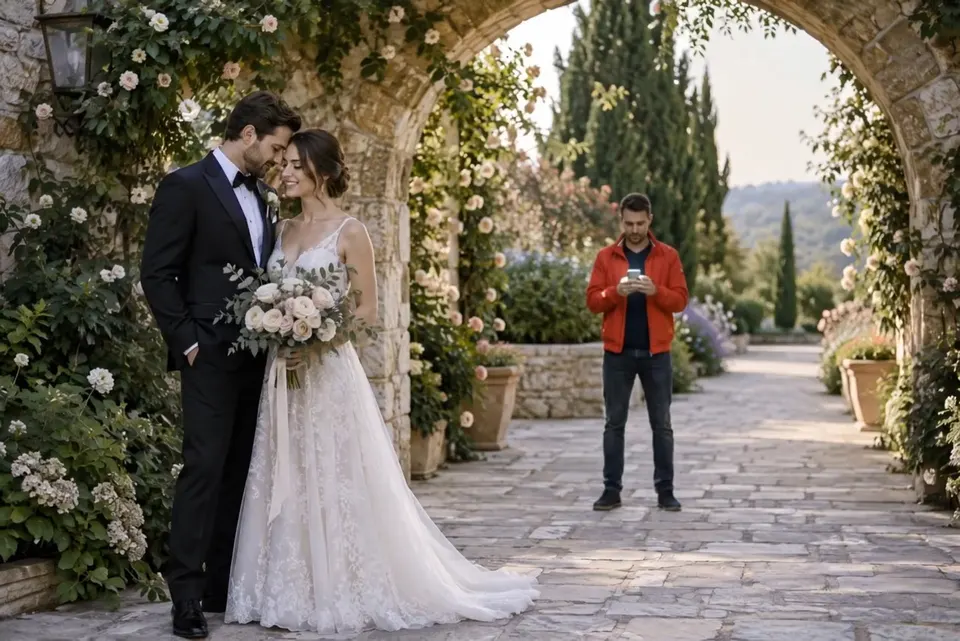
remove the guy in the red jacket behind them
WHAT YOU CAN REMOVE
A stranger in a red jacket stood on the path behind a wedding couple, checking his phone: “remove the guy in the red jacket behind them.” Paving stones and lavender now fill his spot.
See the wedding editA white SUV with a bike rack stood at the curb of a quiet street: “remove the white SUV parked at the curb.” An empty curb and a planted front yard fill the space, and the other parked cars stay where they were.
See the street editOn a beach walk: “remove the trash bin and the trash bag.” Sand and surf run where they stood while she keeps walking.
See the beach edit“Remove all the people behind her” clears a crowd from the background, and the people you came to film stay in the shot.
HOW TO NAME IT
Point to it the way you would for a friend, with no photo or mask needed. When two things look alike, add a color or a side, and if it isn’t obvious who stays, say that too. If a person’s shadow or reflection shows, name it as well: “remove the man in the red jacket and his shadow.”
Ways to point it out:
Several things can go in one request, as on the beach, where the bin and the bag went together.
WHAT FILLS THE SPACE
Aisma builds the spot from the scene around it, frame by frame, so it reads as a continuation of the shot. Behind the wedding couple, the stone path now runs on to a low garden wall and a bed of lavender; on the street, an empty curb and a trimmed hedge stand where the SUV was parked.
Removals look most natural when the same kind of background surrounds what goes, like sand, a sidewalk, a lawn or a plain wall, and when it stands clear of the people you keep. Our guide on how to remove objects from a video compares five ways on one real edit.
WHAT STAYS
The people you meant to film, the camera move and the timing stay as you shot them, and nothing is cropped. Your original audio plays as recorded. The edit comes back as an MP4 in 720p or 1080p, at the length of your clip, in your private Library.
To remove something from part of the clip only, add the time, as in “remove the delivery truck from 0:04 to 0:09”; outside those seconds the clip plays as filmed. If one moment needs another try, open Edit a clip on the finished video and add what to fix, like “remove the bag’s shadow on the sand too.”
For more real removals and requests to borrow, open remove objects from video, and for people, read our guide on how to remove someone from a video.
REAL REMOVALS
Frames from real Aisma edits. Some were recorded with a previous version of Aisma.
HOW IT WORKS
MP4 or MOV, 2–60 seconds, up to 500 MB. Your original framing is kept.
In plain words. Add up to 10 photos when a specific look matters.
Pick 720p or 1080p. Aisma shows the credits first, and the finished edit arrives in your private Library.
A FEW GOOD QUESTIONS
From 2 to 60 seconds, as an MP4 or MOV file of up to 500 MB, filmed vertical, square or horizontal. Clips up to the full 60 seconds work, and what you name goes from every shot it appears in. Our article on video length and formats has the rest.
Yes. Open aisma.ai in Safari or get the Aisma app for iPhone and iPad (iOS 16.4 or later); there’s an Android app too. Sign in with the same account and your Library and credits come with you.
Yes. Aisma edits a clip you’ve already filmed, on your phone or a camera, so there’s nothing to reshoot and nothing to mask. Use footage you shot or have permission to edit: clearing a stranger out of your own wedding or vacation clip is exactly the point.
Yes. Your clip and the finished edit are private to your account: only you can open them in your Library, each through a short-lived link. Delete any finished task from its menu whenever you like.
An MP4 of your clip without what you named, in 720p by default or 1080p, with its length, framing and original audio. Our article on what you download covers Save video, Share and redoing one clip.
Write to support@aisma.ai, or open the help center for every other answer.