 aisma
A bottle or a jar
The whole product in focus on a plain background, cap or lid included, in soft, even light and at the angle your clip shows most.
See a perfume bottle swapUpload a clip of 2 to 60 seconds, add a clear photo of your product and write one sentence, such as “swap the bottle for the black one from the photo,” to say what it replaces. Aisma puts your product in its place in every frame and keeps the hands, the set, your framing and the sound as filmed.
Updated November 21, 2026
Jump to the questions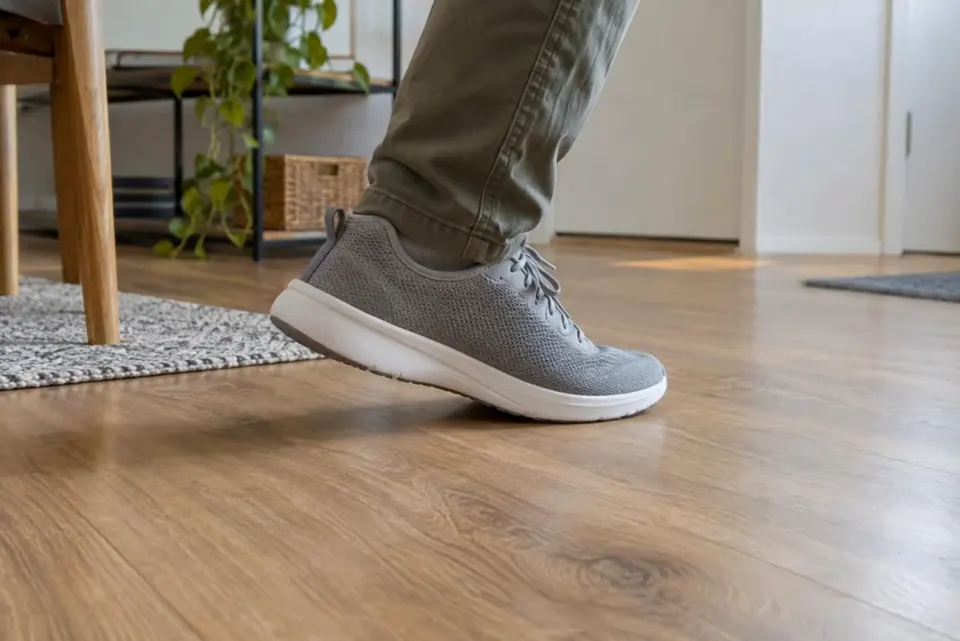
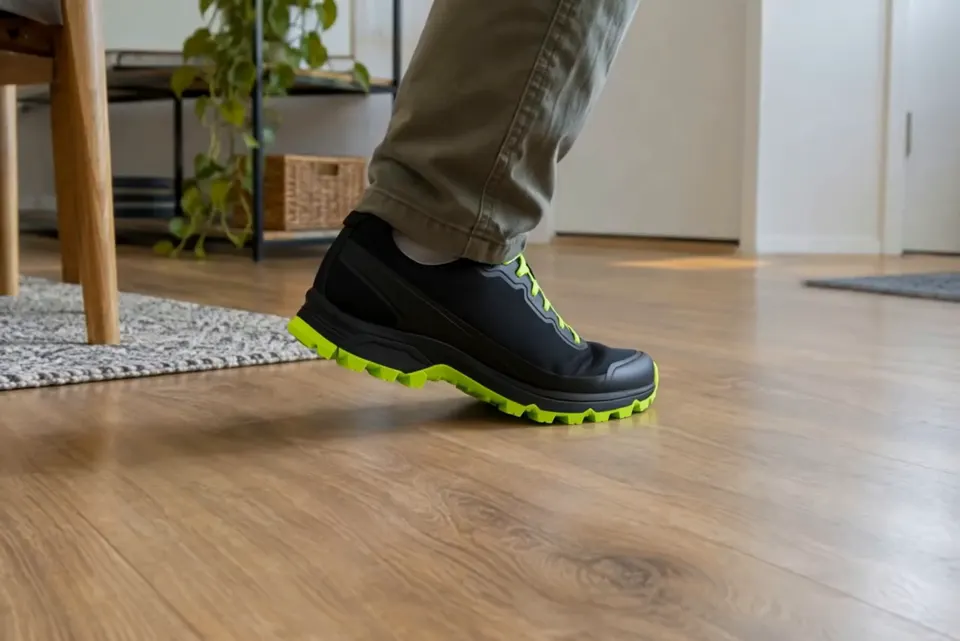
put the black trail shoe from the photo on him
THE PRODUCT PHOTO
The whole product in focus on a plain background, cap or lid included, in soft, even light and at the angle your clip shows most.
See a perfume bottle swapThe side the camera sees, straight on and evenly lit. For a gift set or two products, give each its own photo and say which one replaces what.
See product swapsOne edit per product, each with its own photo. Every version keeps the take’s length and timing, and Recreate in your Library reopens the clip for the next one.
See a candle jar swapA simple change needs no photo, like “make the bottle matte white with a silver cap.” A specific product needs its photo.
Word your requestYOUR REQUEST
Name the product in the shot and point to the new one by its photo, with a few words about it: “swap the candle for the amber glass jar with a cork lid in Photo 1.” Then add a sentence for what must stay put, such as “Keep her hands, the apron and the light.” With one photo, “from the photo” works too.
Aisma takes the shape from your photo, so a tall jar rises higher above the fingers than the short candle it replaced. If the size has to match the original, say so.
WHAT STAYS
The hands keep their grip and the turn of the wrist, and the set, the light and the camera stay as filmed. Your voiceover and music stay as recorded, and the edit keeps the clip’s length and timing, so captions you add later line up across every version.
Our product swap page shows four swaps up close, each with what changed and what stayed.
GOOD TAKES
Products swap best when they stay easy to see: a steady hand, even light and the product in view most of the time, like the perfume bottle below, which turns edge-on in one hand. If a hand hides most of it or it blurs past, pick a cleaner take.
Weighing a reshoot, planar tracking or a 3D rebuild instead? Our guide on how to swap a product in a video compares all four ways.
REAL SWAPS
HOW IT WORKS
MP4 or MOV, 2–60 seconds, up to 500 MB. Your original framing is kept.
In plain words. Add up to 10 photos when a specific look matters.
Pick 720p or 1080p. Aisma shows the credits first, and the finished edit arrives in your private Library.
A FEW GOOD QUESTIONS
Up to 60 seconds: any clip of 2 to 60 seconds, as an MP4 or MOV file of up to 500 MB, vertical, square or horizontal. Your product carries through every shot where the old one appears.
JPEG, PNG or WebP, up to 20 MB each and up to 10 per edit. One clear photo is enough for one product; add a second when its back or side shows in the clip.
Yes. Aisma runs in the iPhone and iPad app (iOS 16.4 or later), in the Android app and in the browser at aisma.ai. Film the take, add one clean photo of the product and say what to replace.
An MP4 of the same take with your product in it, in 720p by default or 1080p if you pick it before you generate, with the clip’s length, framing and original sound. It lands in your private Library, where Save video keeps it on your device.
Yes. Your clip, your product photos and the finished edit are private to your account: only you can open them in your Library, each through a short-lived link. Use photos of products you own or have the rights to show.
Write to support@aisma.ai, or open the help center for every other answer.