 aisma
How long can a video be in Aisma?
Clips of 2 to 60 seconds, the files and shapes Aisma takes, and photo sizes.
Video length and formatsOpen Clips under the finished video, pick the clip, write what should change in it and press Regenerate, which shows that clip’s own price in credits. Aisma redoes that clip alone, keeps the rest of the video as it is and updates the full video for you.
Updated November 22, 2026
Jump to the questions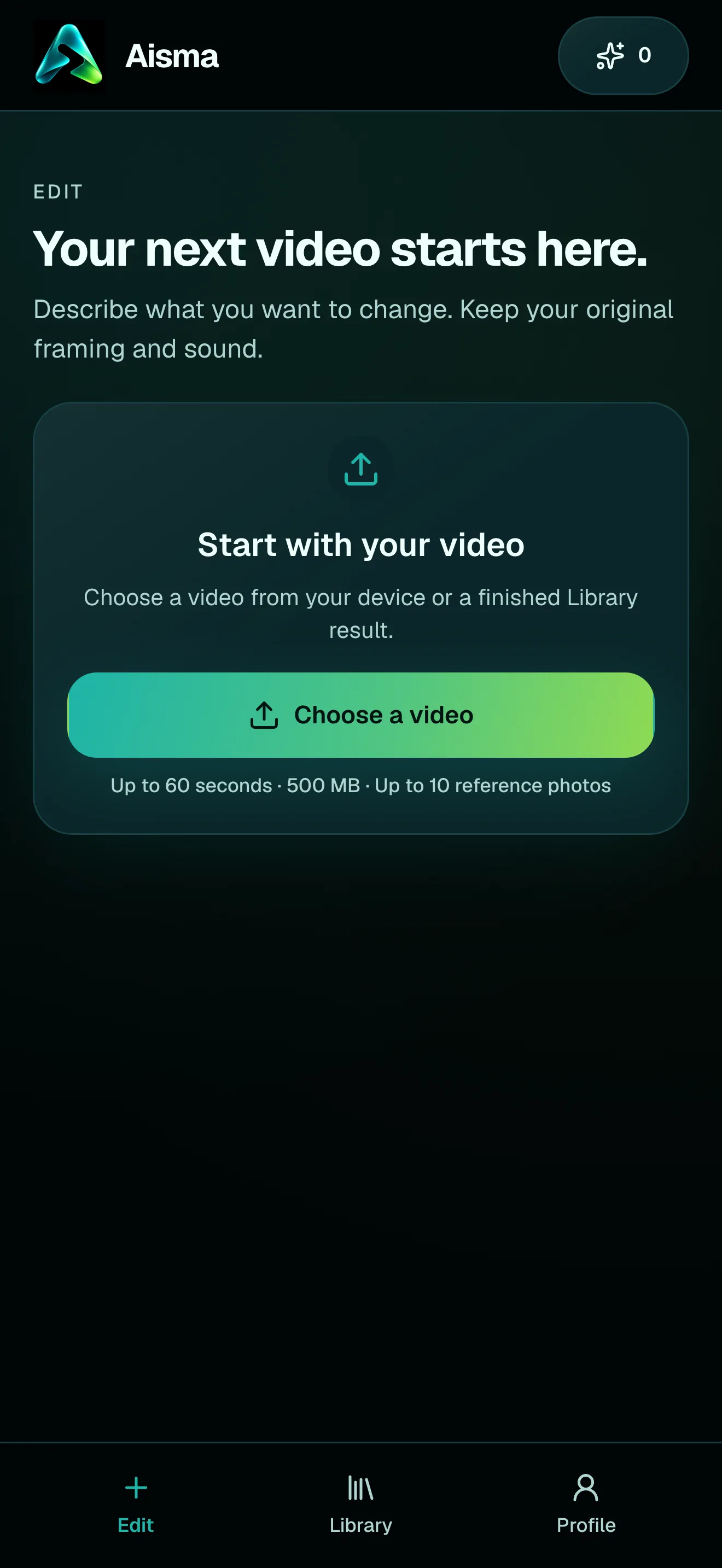
IN SHORT
OPEN A CLIP
When the whole video is ready, its page shows Clips under the player: “Change one moment. Aisma updates the full video automatically.” Aisma splits your video into clips at its cuts, and a long shot into a few parts, so each row is one stretch of your video, with a picture and its time span.
Opening a row pauses the full video and shows that clip on its own: the original footage it starts from, the versions it has and a box for your clarification.
YOUR CLARIFICATION
Write what should be different in this clip, the way you wrote your request: “make the jacket a darker red” or “keep his dark olive shirt.” Your original request still applies there; the clarification changes only what it names, and everything else you asked for stays the same.
Times count from the start of the clip, as its player shows: in a clip that runs from 0:10 to 0:15 of your video, “from 0:02” means 0:12. An empty box runs the clip again with what it already has. Our article on editing part of a clip has more ways to say when.
THE PRICE
Each clip is priced on its own, in credits, and the price shows on the Regenerate button before you confirm; nothing is charged until you do. If the new version fails, or your clarification can’t be used in that clip, its credits go back to your balance, and Aisma tells you why next to the clip, with a way to edit what you wrote.
Credit packs and weekly plans are on our pricing page.
VERSIONS AND SAVING
A new version takes the clip’s place, and Aisma puts the full video together again with it and your original audio, while the other clips stay exactly as they were. Every earlier version stays under Versions, so you can preview one and switch back, and switching uses no credits.
Save video and Share always use the whole updated video with the clip versions you picked, never a single clip. While Aisma updates it, the previous whole video stays on the page to watch, and Save video is ready again as soon as the new one is. Our article on what you download covers the file.
To start over with a different request instead, recreate the edit from your Library; nothing is charged until you press Generate. Our guide on how to edit a video with AI follows one real edit from the clip to the finished video.
HOW IT WORKS
MP4 or MOV, 2–60 seconds, up to 500 MB. Your original framing is kept.
In plain words. Add up to 10 photos when a specific look matters.
Pick 720p or 1080p. Aisma shows the credits first, and the finished edit arrives in your private Library.
A FEW GOOD QUESTIONS
It stays as it is. The other clips keep the versions they have, and Aisma puts the full video together again with your new clip and your original audio.
Each clip is priced on its own, in credits, and Aisma shows the price on the Regenerate button before you confirm. Credit packs and weekly plans are on our pricing page.
Yes. Open the clip, preview any version under Versions and choose it again; the full video updates with it, and switching uses no credits.
Yes. Clips works the same way in the browser at aisma.ai and in the apps for iPhone and iPad (iOS 16.4 or later) and Android.
One MP4 of the whole video with the clip versions you picked, in the quality you chose, 720p or 1080p, with your original audio.
Write to support@aisma.ai, or open the help center for every other answer.