 aisma
How long can a video be in Aisma?
Clips of 2 to 60 seconds, the files and shapes Aisma takes, and photo sizes.
Video length and formatsDescribe the person by what they wear, where they stand or what they do, such as the man in the red jacket on the left, and give anyone who stays a sentence of their own. To change several people from photos, say which photo goes with whom, or Aisma pairs Photo 1 with the person who appears first, Photo 2 with the next, and so on.
Updated November 22, 2026
Jump to the questions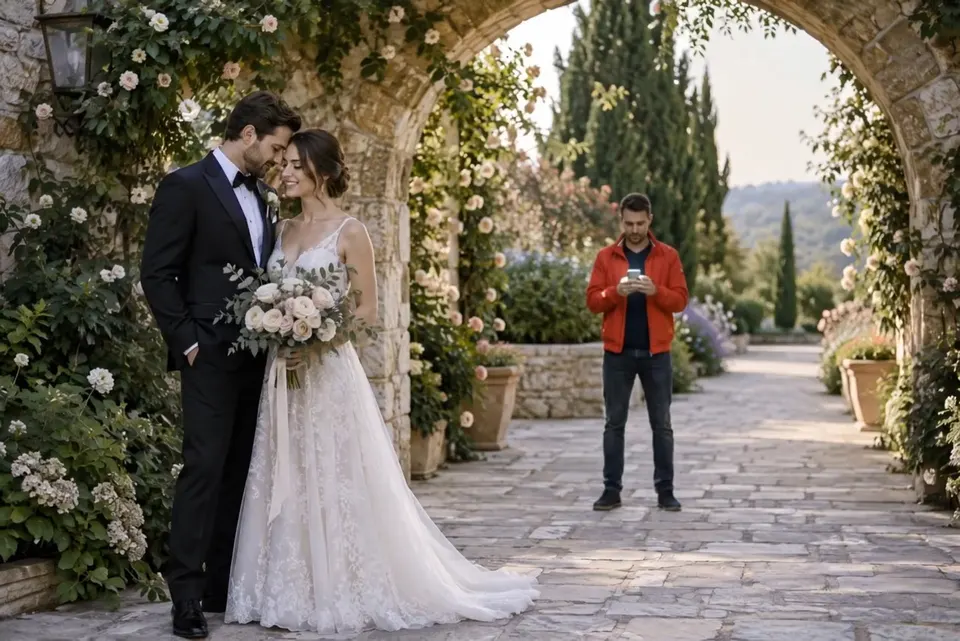
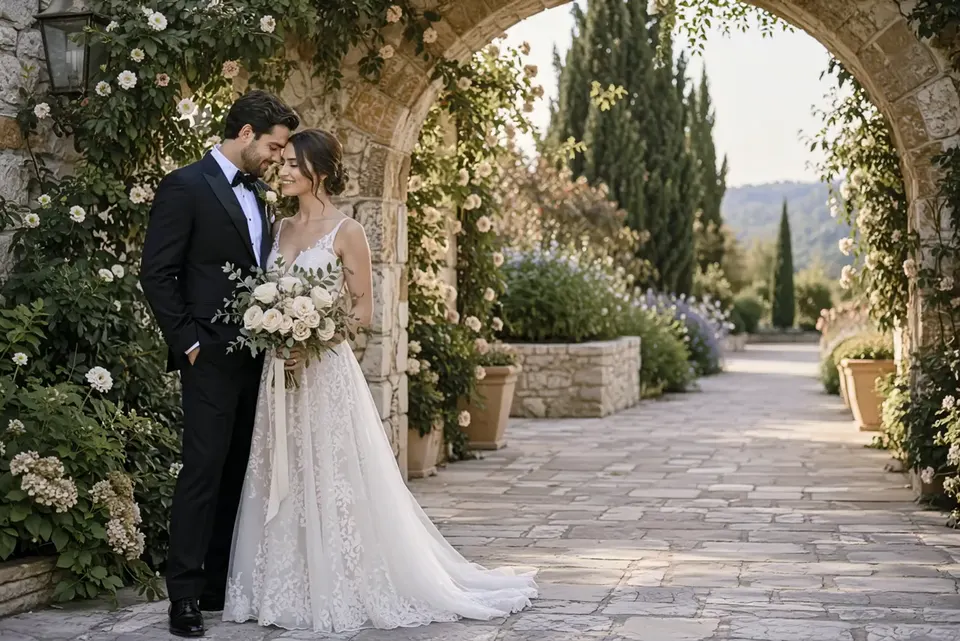
remove the guy in the red jacket behind them
WAYS TO POINT
ONE PERSON AMONG SEVERAL
Describe the person you mean the way you’d point them out to a friend: by what they wear, where they stand or what they do. Clothes work well because they stay the same through the clip, as in our wedding photobomber example, where one line about a stranger in a red jacket removed him from behind the couple.
Then give anyone who stays a sentence of their own: “Keep her dark shirt and necklace exactly as they are.” In our plaid shirt example, that one line kept a woman’s denim shirt and red pendant as filmed while his shirt became a red-and-black check.
SEVERAL PEOPLE, SEVERAL PHOTOS
Tie each photo to a person by its label: “Replace the man on the left with Photos 1 and 2, and the woman on the right with Photos 3 and 4.” Outfits work the same way: “put the suit from Photo 1 on the man and the dress from Photo 2 on the woman.”
If your request doesn’t say, Aisma pairs the photos in order with the people in order of appearance: Photo 1 with the person who appears first in the clip, Photo 2 with the next. On the web, when a photo could go with either person, Aisma may ask who gets it before it renders, showing your photo and a few answers to tap.
SEVERAL PHOTOS FOR ONE PERSON
Photos you give together for one person all go to that person: a dress in Photo 1 and sneakers in Photo 2 for “her” make one outfit. For a face, two portraits of the same person, one from the front and one at a three-quarter angle, give Aisma more to match. One edit takes up to 10 photos in all.
If you add a few options for the same thing, such as three jackets for him, Aisma uses one of them, the one you pick when it asks or else the first, and never blends them. To try another, recreate the edit from your Library and name the photo you want. Our article on reference photos covers what to photograph.
EVERYONE ELSE
People your request doesn’t name keep their faces, clothes and moves, and in a shot where the person you named doesn’t appear, nothing changes for them. The clip keeps its framing, its length and your original audio.
For face swaps and whole-person swaps with real edits, see our video face swap page and our page on replacing a person in a video, or read how to face swap a video.
HOW IT WORKS
MP4 or MOV, 2–60 seconds, up to 500 MB. Your original framing is kept.
In plain words. Add up to 10 photos when a specific look matters.
Pick 720p or 1080p. Aisma shows the credits first, and the finished edit arrives in your private Library.
A FEW GOOD QUESTIONS
Yes. Name each one and what they become in one request, such as “change his shirt to red plaid and her denim shirt to white linen.” If a look comes from a photo, say which photo goes on whom.
Aisma pairs them in order: Photo 1 with the person who appears first in the clip, Photo 2 with the next. On the web it may ask you first, and if you don’t answer within about five minutes, it uses that order.
Up to 10 per edit in all. Give each person one or two clear portraits, or one photo of each garment, and name them in your request as Photo 1, Photo 2 and so on.
Yes. Describe the one to remove, such as “remove the man in the red jacket behind the couple,” and Aisma fills in what was behind him while the couple stays as filmed. Our article on removing people and objects has more.
Photos you own or have permission to use. If you put a different person into a clip, use photos of someone who agreed to it.
Write to support@aisma.ai, or open the help center for every other answer.