 aisma
Something that flies
A woman sweeps a bouquet outward with a turn of her wrist, and the request quoted in the opening answer made the flowers let go of their petals, which spiral around her arm as she turns.
See the petals flyUpload the clip to Aisma, 2 to 60 seconds long, and write the effect as an event in one sentence, such as “make the petals fly off the flowers around her arm,” then add a second sentence for what must stay. Aisma renders that event into the footage itself, and your framing, the camera move, the clip’s length and your original audio stay as you filmed them.
Updated November 23, 2026
Jump to the questions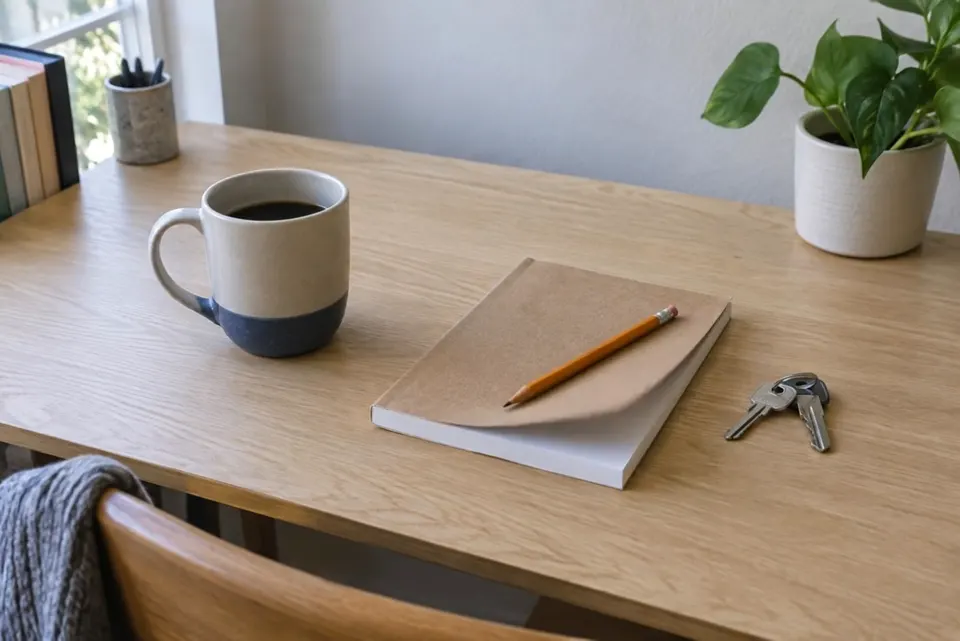
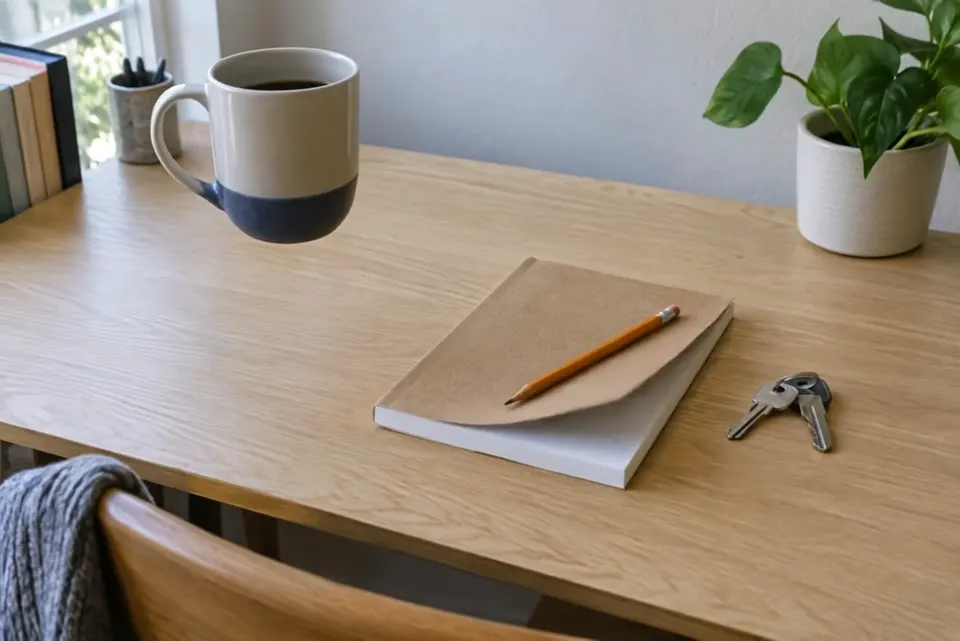
make the mug float in the air
AT A GLANCE
WHAT YOU CAN ADD
A woman sweeps a bouquet outward with a turn of her wrist, and the request quoted in the opening answer made the flowers let go of their petals, which spiral around her arm as she turns.
See the petals flyOn a desk by a window, one sentence made the coffee mug lift off and hover, a soft shadow under it, while the notebook, pencil and keys stayed put. That still at the top was made with a previous version of Aisma.
Low fog rolling across a field under the lights, or dry leaves lifting and swirling around the pumpkins on a porch. Say what moves and what it moves around.
Afternoon light turning to dusk with the porch lights on, while the house, the lawn and the drone’s path stay as filmed.
THE EVENT
Write the effect as something that happens, not as the name of a filter or a preset: what moves or appears, which object it happens to, and when. “Make the candle rise off the shelf and hover, turning slowly” gives Aisma all three in one line.
Ask for one event at a time. For a second effect, or an effect plus a new background, open the finished clip in your Library, use it as the source of your next edit and describe the next change there.
WHAT STAYS
Add a second sentence that names everything that should look as it did, down to small details. Our bouquet request kept the woman, her shirt, the stems in her hand, the room and the camera, and one more short line set the look: real petals, no glitter.
Only the event you describe changes. The people and the way they move, the setting and the camera move stay as filmed, and so do your clip’s length and its sound, so the result drops into your edit like any other shot.
THE MOMENT
An effect can run through the whole clip or start when you say. Tie it to the action, like “as she tosses the bouquet,” or give a time counted from the start of your clip, such as “from 0:04 to 0:07.” Our article on editing part of a clip has more ways to say when.
NO MASKS OR KEYFRAMES
Visual effects usually mean tracking the shot, masking the subject and compositing layers. With Aisma there’s no plug-in, mask or keyframe on your side: the event is rendered into the clip itself, and effects show best on a steady take where the thing you change stays in clear view. The bouquet clip holds a still, waist-up frame for all 10 seconds, which gives the petals room to spiral.
For our request taken apart sentence by sentence and more effect ideas to borrow, open the AI video effects page. For the whole frame in a new material, like wool or clay, see our help article on restyling a video, and for wording in general, how to write a video edit prompt.
HOW IT WORKS
MP4 or MOV, 2–60 seconds, up to 500 MB. Your original framing is kept.
In plain words. Add up to 10 photos when a specific look matters.
Pick 720p or 1080p. Aisma shows the credits first, and the finished edit arrives in your private Library.
A FEW GOOD QUESTIONS
Up to 60 seconds: any clip of 2 to 60 seconds, as an MP4 or MOV file of up to 500 MB, vertical, square or horizontal. The effect can run through the whole clip or start at the moment you name. Our article on video length and formats has the rest.
Yes. Aisma runs in the browser at aisma.ai, in the app for iPhone and iPad (iOS 16.4 or later) and in the Android app. Pick the clip, write the effect in a sentence and generate.
No. Effects work from words alone: the petals and the floating mug both started from a sentence with no photo. Add photos, up to 10 per edit, when the look of a specific product, garment or place matters.
Open Clips under the finished video and redo just that part with a clarification, such as “slower, and only around her arm”; Aisma shows that part’s price in credits first. Our article on redoing one clip has the steps.
An MP4 of your clip with the effect in it, in 720p by default or 1080p if you pick it before you generate, at 24 fps and with the clip’s length, framing and original audio. It lands in your private Library, where Save video keeps it on your device.
Write to support@aisma.ai, or open the help center for every other answer.