How do I turn my video into anime?

Upload a clip of 2 to 60 seconds to Aisma and name the style in plain words, such as “an anime-style cartoon with cel shading and clean line art,” then add what should stay. Aisma redraws every frame in that style, and the movement, the timing, your framing and your original sound follow the take you filmed.

Updated November 23, 2026

Jump to the questions
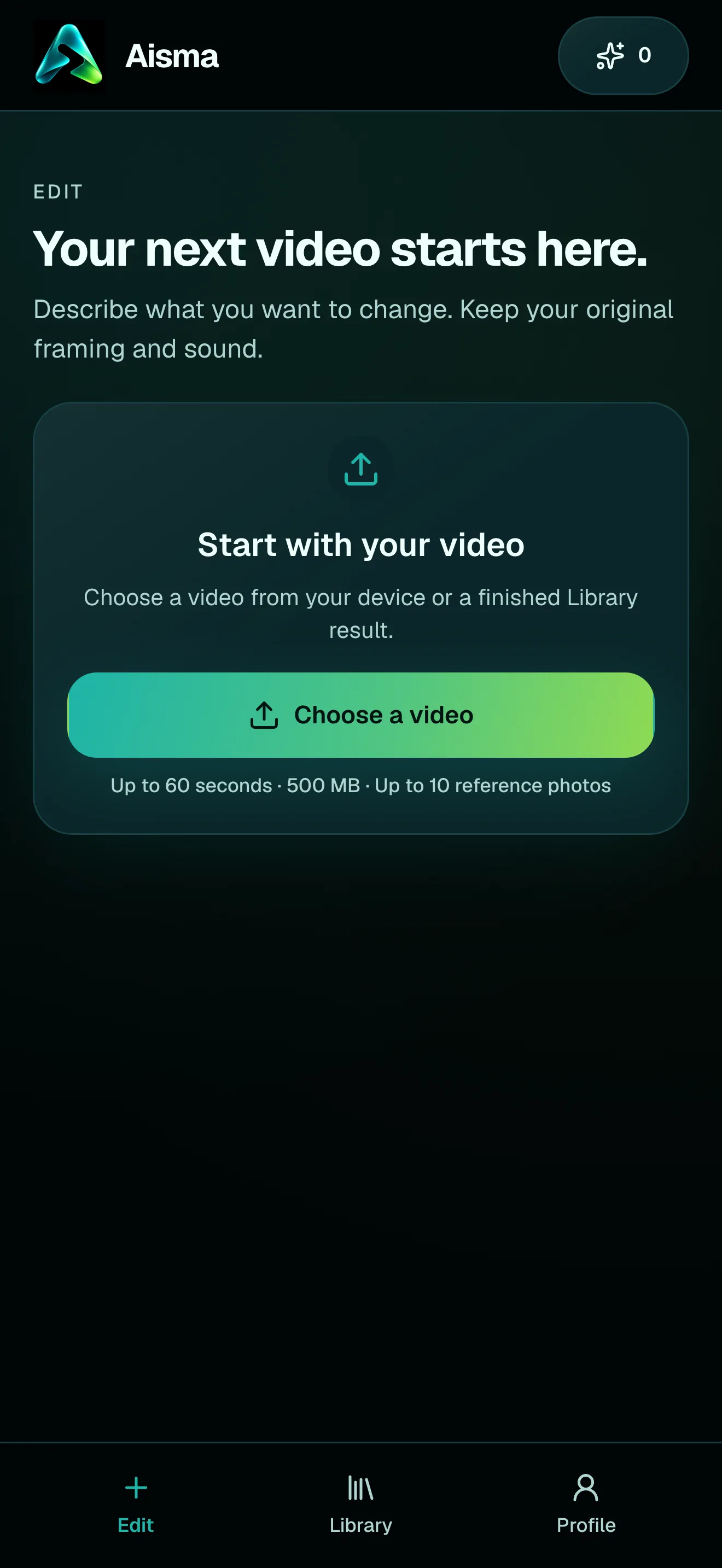
The Aisma Edit screen with Choose a video: up to 60 seconds, 500 MB and up to 10 reference photos
The Edit screen, where the clip and the style go in.

STYLES TO ASK FOR

Anime, 2D or 3D,
one request each.

Anime

A man in a dark suit turns from a gray wall to the camera and smiles. One request drew him as an anime character, down to the lapels and the folds of his jacket: “Turn this video into an anime-style cartoon with cel shading and clean line art.”

See the anime turn

A 2D cartoon

A woman in a long black coat walks down a city sidewalk with a folded umbrella: “Turn this whole video into a 2D cartoon with clean black outlines and flat, bright colors.” The street, the parked cars and her walk came back hand-drawn.

A 3D animated movie

A smiling woman looks into the camera while the wind lifts her hair: “Turn this video into a 3D animated movie look, with soft rounded features and smooth, warm shading.” Her smile and her windblown hair stayed on the same beats.

A comic book

Bold ink outlines and flat colors, with no speech bubbles. Our restyle page plays a dog’s hop drawn that way, beside the same hop in wool, paper and clay.

See the comic dog

YOUR REQUEST

The style first,
then what stays.

A few concrete words steer a style best. For anime, ask for cel shading and clean line art; for a 2D cartoon, black outlines and flat, bright colors; for a 3D animated movie, soft rounded features and smooth, warm shading. Then add your own touch where it matters, like thicker outlines, pastel colors or softer shading.

In a second sentence, name what has to come through: a turn to the camera, a smile, a suit and tie, the timing. Your request can run to 2,000 characters, and no photos are needed. Our video to cartoon page shows each of the three requests above in full, with what changed and what stayed.

PEOPLE AND PLACES

Everyone drawn,
or only the setting.

An anime or cartoon edit redraws the whole frame, people included, and they keep what makes them recognizable in the take: their hairstyle, their clothes, their pose and their expression at each moment. The anime version kept the man’s beard, suit and tie; the cartoon street kept the long black coat and the umbrella.

To keep a person as filmed in a drawn world, say which part to redraw and who stays: “turn the street into a 2D cartoon, keep the woman as filmed.”

WHAT STAYS

The same take,
drawn.

Every move and expression happens at the same moment as in your clip, the camera moves the way it did, and the edit keeps the clip’s length and your original audio, so voices and music stay in sync. When a clip has several shots, the style carries through each one and every cut stays where you made it.

The finished edit is an MP4 in 720p by default, or 1080p if you pick it before you generate, at 24 fps, in your private Library. To try another style on the same clip, recreate the edit from your Library; nothing is charged until you press Generate. Our article on what you download covers Save video and Share.

OTHER LOOKS

Watercolor, clay or paper
in the same request box.

Anime and cartoons are one kind of restyle. For a painting or a material instead, such as watercolor, knitted wool, folded paper or clay, see our restyle page and our help article on restyling a video. To follow one edit from upload to result, read how to edit a video with AI.

REAL CARTOON EDITS

Three takes,
three animated styles.

HOW IT WORKS

Three steps. Just your words.

  1. Choose your video

    MP4 or MOV, 2–60 seconds, up to 500 MB. Your original framing is kept.

  2. Say what should change

    In plain words. Add up to 10 photos when a specific look matters.

  3. Review credits, then generate

    Pick 720p or 1080p. Aisma shows the credits first, and the finished edit arrives in your private Library.

Try it on your video

A FEW GOOD QUESTIONS

Anime and cartoons,
answered.

How long a video can I turn into anime?

Up to 60 seconds: any clip of 2 to 60 seconds, as an MP4 or MOV file of up to 500 MB, in any shape from 9:32 tall to 32:9 wide. A whole Reel or TikTok turns into anime in one edit, every shot included. Our article on video length and formats has the rest.

Can I turn a video into a cartoon on my iPhone?

Yes. Aisma runs in the browser at aisma.ai, in the app for iPhone and iPad (iOS 16.4 or later) and in the Android app, so a clip you film on your phone can go straight in. Pick it, type the style and generate.

Will the person still look like themselves?

They keep their hairstyle, their clothes, their pose and their expression at each moment, drawn in the new style. In our anime edit, the man came through with his beard, his dark suit and his blue tie.

Can I make a video look like a 3D animated movie?

Yes. Name the look and say a word about the features and the shading, as the request for our windblown smile did: soft rounded features and smooth, warm shading. Her smile, her hair and her beige top came back in that look.

Is my video private?

Yes. Your clip and the anime version are private to your account: only you can open them in your Library, each through a short-lived link. Delete any finished task from its menu whenever you like.

Still have a question?

Write to support@aisma.ai, or open the help center for every other answer.