 aisma
How do I edit a video that has text or captions on screen?
Write the change you want, then add a second sentence that names the text to keep, such as “Keep the white caption at the bottom as filmed,” as you would for any detail that must stay. The seconds outside a time you give and any shot your request doesn’t touch play exactly as filmed, text included, and captions timed to your original line up with the edit, which keeps your clip’s length, timing and audio.
Updated November 24, 2026
Jump to the questions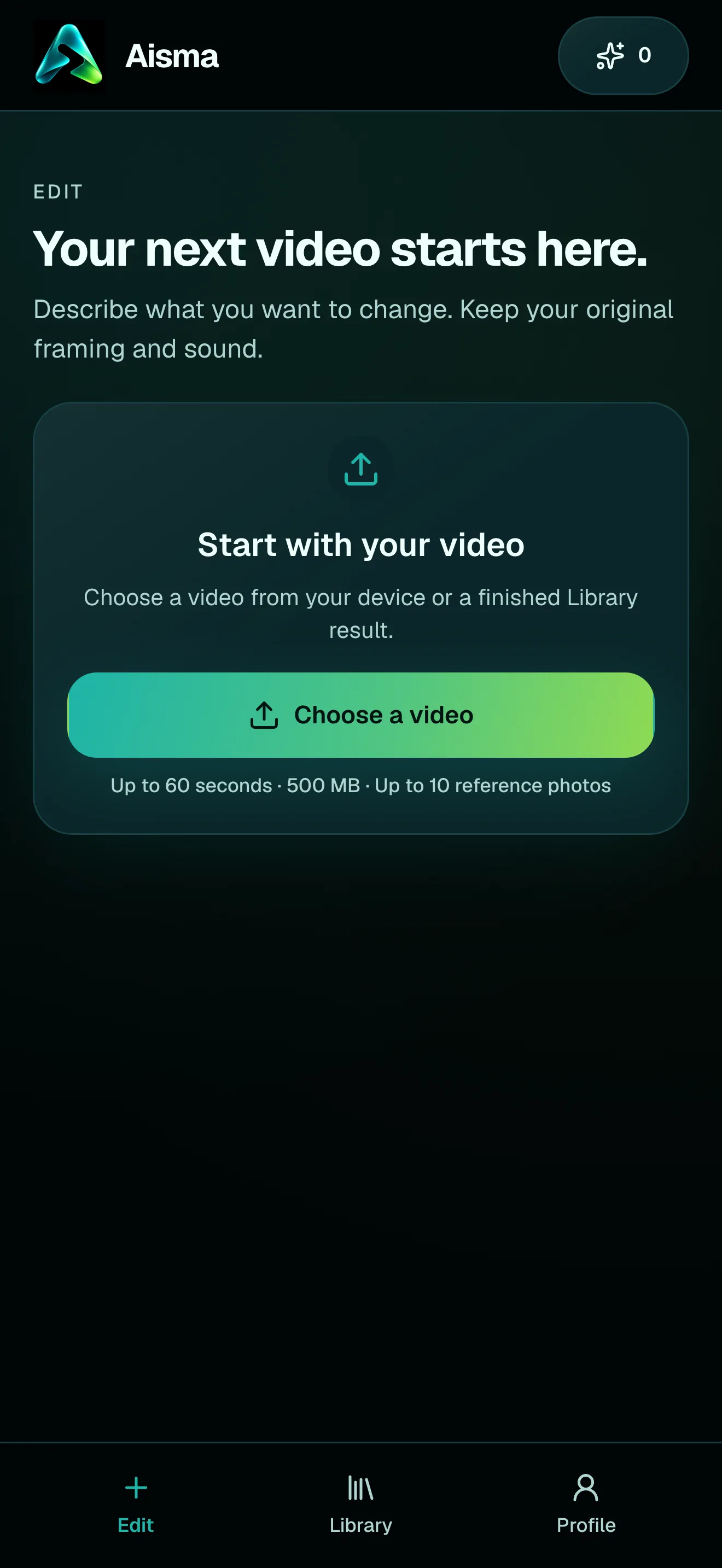
TEXT IN THE FRAME
Name it,
and say it stays.
- Captions
- “Keep the white caption at the bottom as filmed.”
- A sign
- “Keep the café sign above the door.”
- A print on clothes
- “Make the T-shirt forest green. Keep the print on the chest.”
- A product label
- “Keep the label facing the camera.”
- New captions
- Add them after the edit, in the editor or app you already use.
THE KEEP LINE
Name the text,
then say it stays.
Write your change first, then one sentence for the text, named by where it sits or what it is: “Change the wall behind her to a sunset beach. Keep her and the white caption at the bottom as filmed.” With several pieces of text, name them all in that one sentence.
For a change to the thing the text is on, like a shirt with a print, change the shirt and keep the print. Our guide on how to change a shirt color in a video has more requests like it, and our article on what stays the same covers keep lines.
EXACTLY AS FILMED
Seconds and shots
left as filmed.
Give your change a time, and outside it the clip plays exactly as filmed, text included: if a title fills the first 3 seconds, write “from 0:03, change the background to a snowy street,” and the title opens the edit as you made it.
A shot your request doesn’t touch comes back exactly as filmed too, so a title card or end card in a shot of its own keeps its text when your change is about a person or a thing the card doesn’t show. Our article on editing part of a clip has more ways to say when.
NEW CAPTIONS
Captions you add
after the edit.
Captions, titles and stickers you still plan to add go on after the edit, in the editor or app you already use. The edit is an MP4 in 720p or 1080p with your clip’s framing, length, timing and original audio, so captions timed to the voice line up, and one caption file fits every version of the same take. Our article on what you download covers Save video and Share.
HOW IT WORKS
Three steps. Just your words.
Choose your video
MP4 or MOV, 2–60 seconds, up to 500 MB. Your original framing is kept.
Say what should change
In plain words. Add up to 10 photos when a specific look matters.
Review credits, then generate
Pick 720p or 1080p. Aisma shows the credits first, and the finished edit arrives in your private Library.
A FEW GOOD QUESTIONS
Text on screen,
answered.
Can I edit a video that already has captions?
Yes. Name the captions in your keep line, such as “Keep the white captions at the bottom as filmed.” If you also have the clip without captions, edit that one and add the captions after.
Can I add captions after the edit?
Yes. Save the MP4 from your Library and add them in the editor you already use; the edit keeps your clip’s length, timing and audio, so captions timed to the voice line up.
What happens to a title or end card?
In a shot of its own that your request doesn’t touch, it comes back exactly as filmed. You can also give your change a time that ends before the card, as in “change her jacket to red from 0:00 to 0:24.”
Will text on a shirt or a product stay?
Ask for it in your request, after the change you want: “Make the T-shirt forest green. Keep the print on the chest,” or “keep the label facing the camera.”
Is my clip private?
Yes. Your clip and the finished edit are private to your account: only you can open them in your Library, each through a short-lived link.
Still have a question?
Write to support@aisma.ai, or open the help center for every other answer.