 aisma
How long can a video be in Aisma?
Clips of 2 to 60 seconds, the files and shapes Aisma takes, and photo sizes.
Video length and formatsUpload the clip as you filmed it, an MP4 or MOV of 2 to 60 seconds and up to 500 MB, in the Aisma app for iPhone or Android or in the browser, and write what should change. Aisma edits it in the shape you filmed, so a 9:16 clip comes back 9:16 with nothing cropped, at the same length and with its original audio, ready for Reels, TikTok and Shorts.
Updated November 24, 2026
Jump to the questions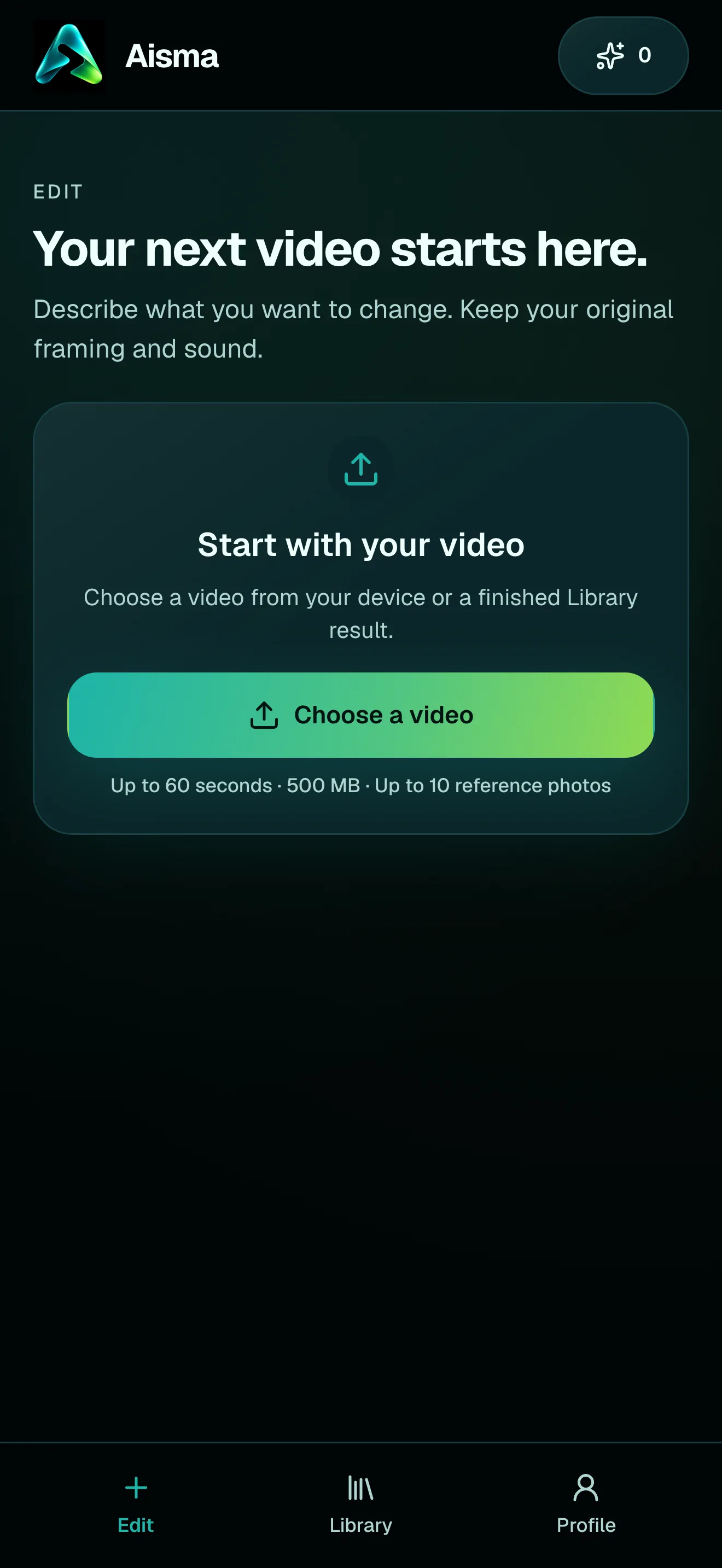
AT A GLANCE
FROM YOUR PHONE
In the Aisma app for iPhone or Android, choose the clip from your camera roll; in the browser at aisma.ai, upload it from your phone or computer. Phones save MP4 or MOV files, and Aisma takes either. Sign in and your Library comes with you to every device.
THE SAME SHAPE
Aisma edits the whole frame you filmed and returns it in the same shape: no crop to a square, no black bars, no reframing. A 9:16 Reel comes back 9:16, at the same length and with your original audio; our article on what stays the same has the rest.
The red suit dance on our example pages is a 15-second vertical clip: the dancer’s gray tracksuit became a scarlet suit through the whole dance, framed as filmed. The perfume bottle swap is a 10-second vertical take of one hand.
TIPS FOR PHONE CLIPS
Our article on which videos work best has more tips, and the video to cartoon page shows one request carried through a whole clip.
HOW IT WORKS
MP4 or MOV, 2–60 seconds, up to 500 MB. Your original framing is kept.
In plain words. Add up to 10 photos when a specific look matters.
Pick 720p or 1080p. Aisma shows the credits first, and the finished edit arrives in your private Library.
A FEW GOOD QUESTIONS
Yes. Aisma keeps the shape you filmed, with nothing cropped or padded, so a 9:16 clip comes back 9:16, every shot included.
Yes. Upload the clip you filmed for it, up to a full 60 seconds, and Aisma edits all of it. In the apps, Save video puts the finished edit in your phone’s photo library, ready to post.
Yes. iPhone clips are MOV or MP4 files, and Aisma takes both, 2 to 60 seconds long and up to 500 MB, in the app for iPhone and iPad (iOS 16.4 or later) or at aisma.ai in Safari.
They work the same way, in any shape from 9:32 tall to 32:9 wide, and each comes back in its own shape. Our article on video length and formats has the rest.
To your private Library, on the web and in the apps, where Save video keeps the file on your device and Share sends it on. Our article on what you download has the rest.
Write to support@aisma.ai, or open the help center for every other answer.