 aisma
How long can a video be in Aisma?
Clips of 2 to 60 seconds, the files and shapes Aisma takes, and photo sizes.
Video length and formatsUpload the recording to Aisma, a clip of 2 to 60 seconds, and describe the change in plain words, such as a new room behind the speaker, a different top or a mug cleared off the shelf. Aisma keeps your original audio, so the voice and every word stay as recorded, and the speaker’s expressions, gestures, framing and timing follow the take you filmed.
Updated November 25, 2026
Jump to the questions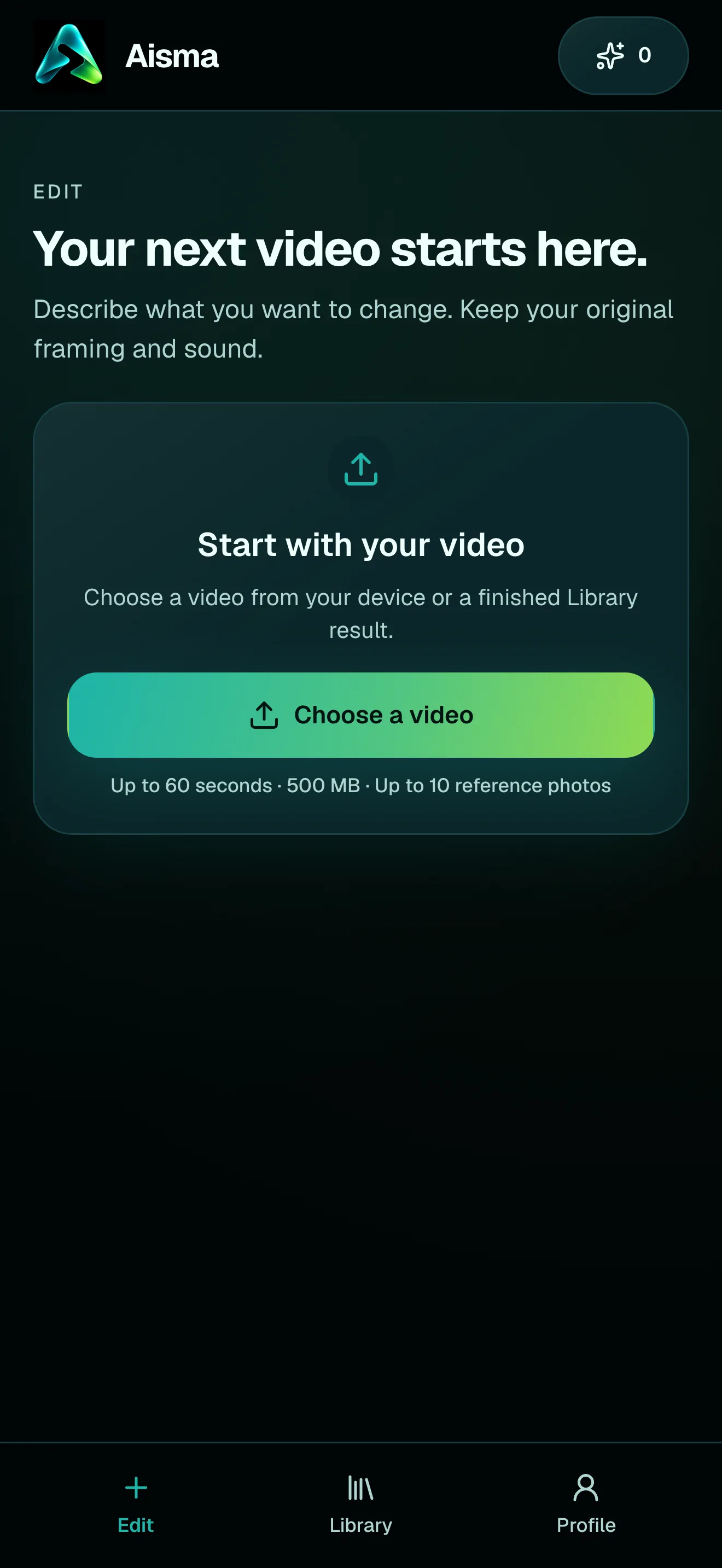
What stays
What changes
What you bring
One recording + a sentence for the change + one for what stays
WHAT TO TYPE
Write the change in one sentence, then add a second for what must stay, such as “Keep my face and my hands as filmed.” Requests like these suit a clip of someone talking to the camera:
A NEW ROOM
In our home office example, a man talks to the camera in front of a plain gray wall, and one written request put a cozy home office behind him: a bookshelf, a plant and warm lamps. His face, his gestures and his white T-shirt stayed as filmed, and the light on him turned warmer to match the room.
A plain, evenly lit wall leaves the most room for the new place; for your own studio or shop, add its photo. Our article on changing a video background has more wording.
WHAT STAYS
Aisma changes what you see, not what you hear: the voice, every word and any music play as recorded. The expressions and gestures follow your take unless your request changes them, and the edit keeps the clip’s length and framing; our article on what stays the same has more.
Since the timing stays too, captions you add after the edit line up with the voice. If your recording already has captions, our article on editing a video with text on screen shows how to keep them.
REAL EDITS
HOW IT WORKS
MP4 or MOV, 2–60 seconds, up to 500 MB. Your original framing is kept.
In plain words. Add up to 10 photos when a specific look matters.
Pick 720p or 1080p. Aisma shows the credits first, and the finished edit arrives in your private Library.
A FEW GOOD QUESTIONS
Yes. Aisma keeps your clip’s original audio, so the voice, every word and any music in the recording play as recorded under the edited picture.
Yes. Describe the new place in a sentence and say who stays; Aisma builds it behind the speaker in every frame, with no mask and no cut-out edge around hair and hands.
Yes. Name the piece and what it becomes, such as “change my gray hoodie to a navy blazer,” or add a photo of the garment and call it Photo 1. Our article on changing clothes in a video has more.
Up to 60 seconds: any clip of 2 to 60 seconds, as an MP4 or MOV file of up to 500 MB. For a longer talk, edit it in parts of up to 60 seconds; our article on video length and formats has the rest.
Yes. Aisma runs in the app for iPhone and iPad (iOS 16.4 or later), in the Android app and in the browser at aisma.ai. Our article on editing a video shot on iPhone covers iPhone files, HDR included.
Write to support@aisma.ai, or open the help center for every other answer.