 aisma
How long can a video be in Aisma?
Clips of 2 to 60 seconds, the files and shapes Aisma takes, and photo sizes.
Video length and formatsUpload the clip to Aisma, 2 to 60 seconds of the ceremony, the toasts or the first dance, and write the fix in a sentence, such as a stranger removed from behind the couple, a tie in the right color or a garden in place of a plain hall wall. Aisma carries that change through the whole clip and keeps your original audio, so the vows, the speeches and the music play as recorded, with the couple’s moves, your framing and the clip’s length as filmed.
Updated November 26, 2026
Jump to the questions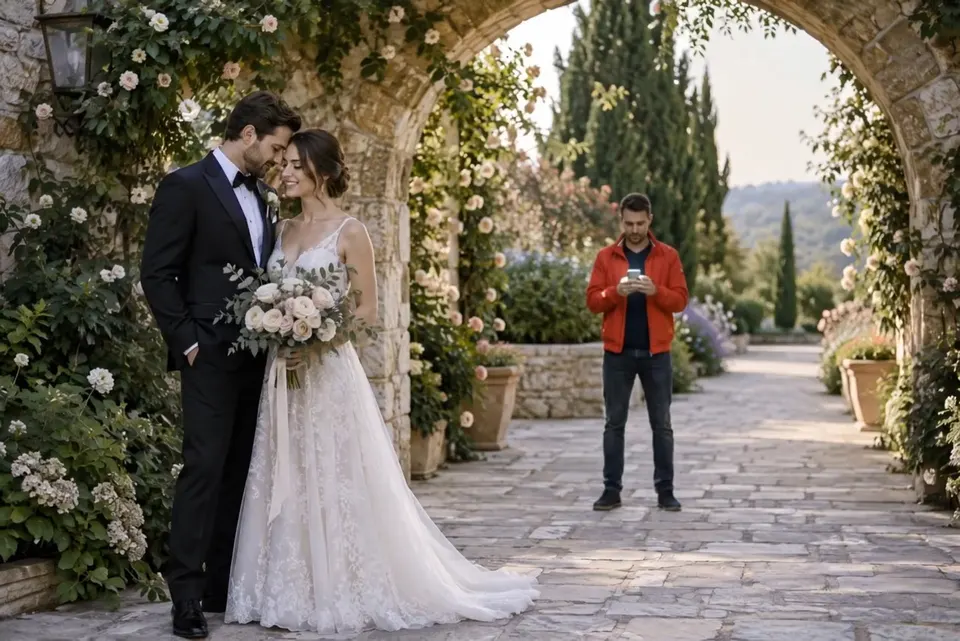
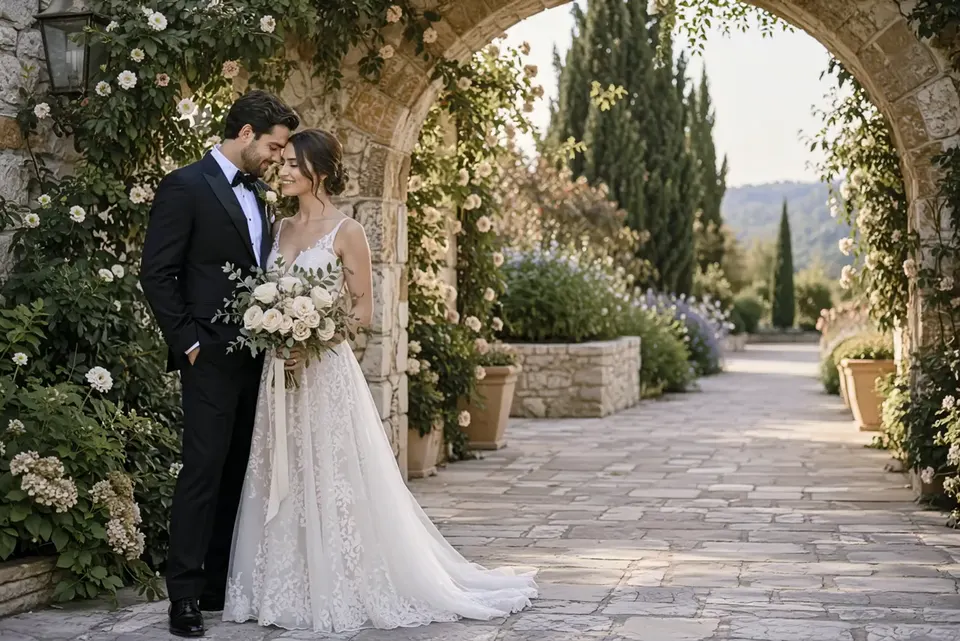
remove the guy in the red jacket behind them
What stays
What changes
What you bring
One clip + a sentence for the fix + one for who stays
WHAT TO TYPE
Name what should change by what it looks like and where it is, then who stays: “Keep the bride, the groom and the arch as filmed.” Requests like these suit wedding and event clips:
A REAL WEDDING EDIT
In our wedding example, a man in a red jacket stood on the path behind the bride and groom, checking his phone. The photobomber request above removed him with no photo: paving stones and lavender fill his spot, and the couple’s walk came through as filmed.
A removal looks most natural when the person stands clear of the couple. Our guide on how to remove someone from a video weighs the other ways, and remove objects from video has more removals.
COLORS AND BACKDROPS
A color fix needs no photo: name the garment, who wears it and the new color. For a specific suit or gown, add its photo, as our article on changing clothes in a video explains.
For a plain hall wall behind the toasts, describe the new place and who stays; Aisma builds it behind them in every frame, with no green screen, as on our video background changer.
WHAT STAYS
The vows, the toasts and the band play as recorded, in step with the edited picture.
For a whole film, edit the moments that need it as clips of up to 60 seconds. Each comes back as an MP4 in 720p or 1080p in your private Library; our article on what you download has the rest.
REAL EDITS
HOW IT WORKS
MP4 or MOV, 2–60 seconds, up to 500 MB. Your original framing is kept.
In plain words. Add up to 10 photos when a specific look matters.
Pick 720p or 1080p. Aisma shows the credits first, and the finished edit arrives in your private Library.
A FEW GOOD QUESTIONS
Up to a full 60 seconds, room for a moment like the first kiss or the cake cutting: any MP4 or MOV of 2 to 60 seconds and up to 500 MB. For the whole ceremony, edit it in parts; our article on video length and formats has the rest.
Yes. Open the clip in the Aisma app for iPhone and iPad (iOS 16.4 or later) or for Android, or at aisma.ai in your phone’s browser, and type the fix.
Yes, when it’s yours to edit: footage you shot, or a clip a guest or your videographer gave you to use.
Yes. Your clip and the finished edit are private to your account, each opened through a short-lived link, and nobody else sees them unless you share the file.
Yes. Aisma keeps your clip’s original audio and its timing, so every word of the vows lines up with the edited picture.
Write to support@aisma.ai, or open the help center for every other answer.